How to launch a project from a template in Asana
Use a template to create a new project, then add and publish an automation rule. You’ll finish by opening a task to confirm the automated comment appears in the task details.
1. Click Create project
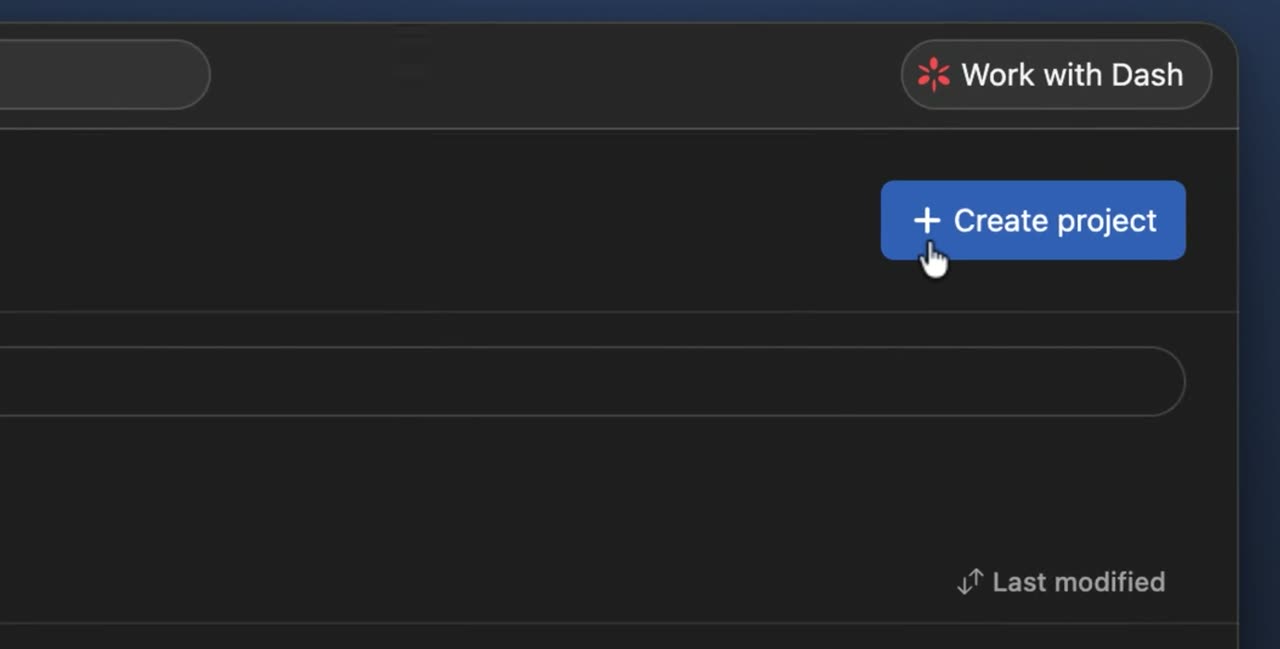
From Browse projects, click + Create project. This starts a new project from scratch or from a template.
2. Choose the Product launch template
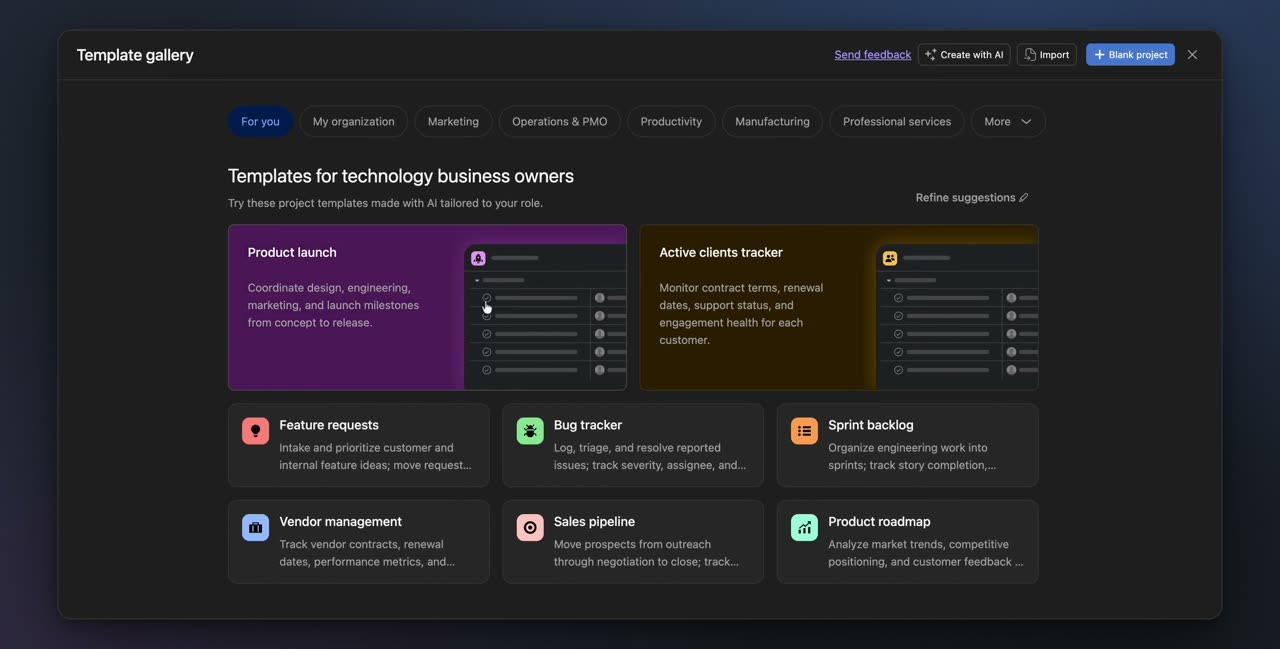
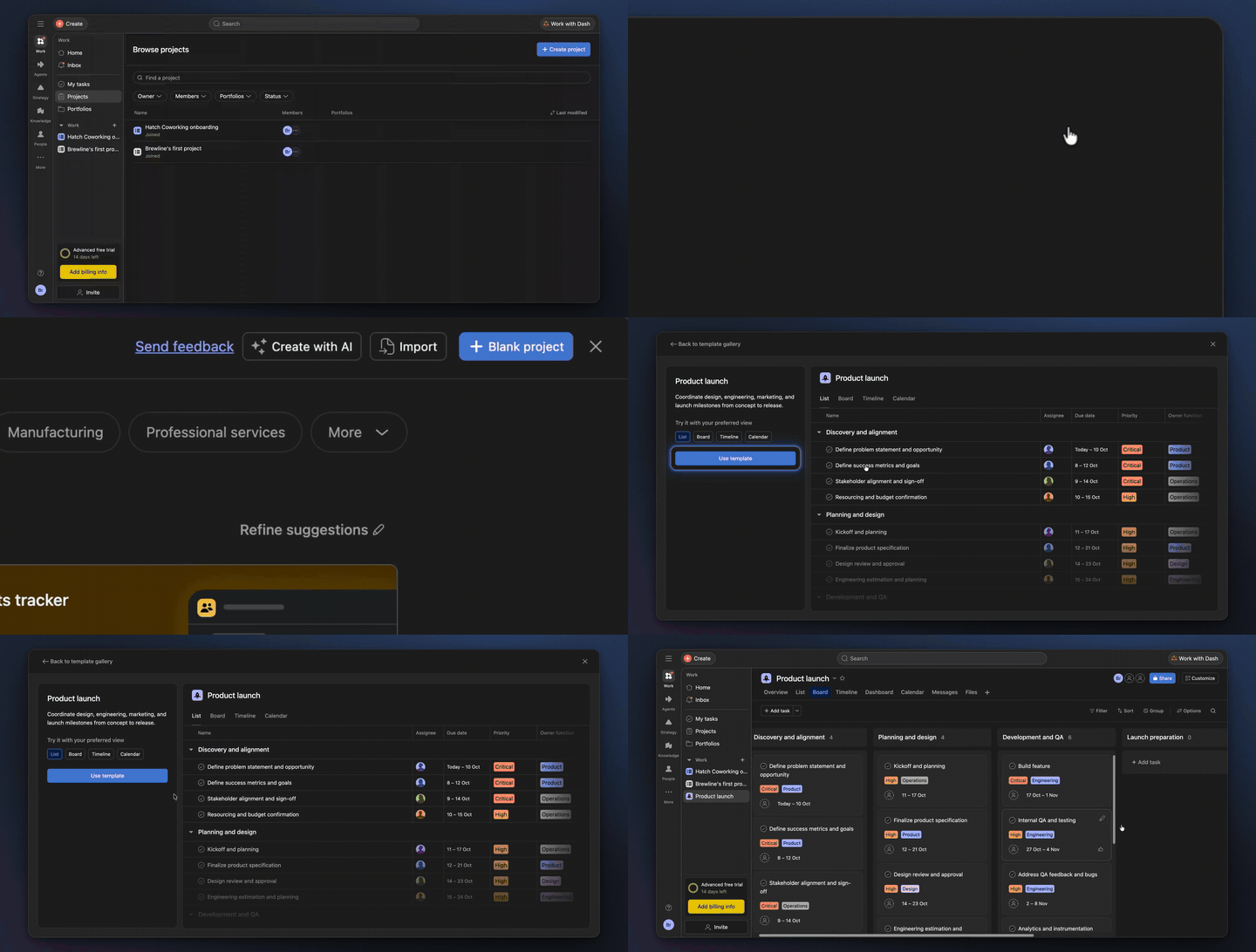
Select the Product launch template, then click Use template. The new project opens and switches to Board view.
3. Open Customize
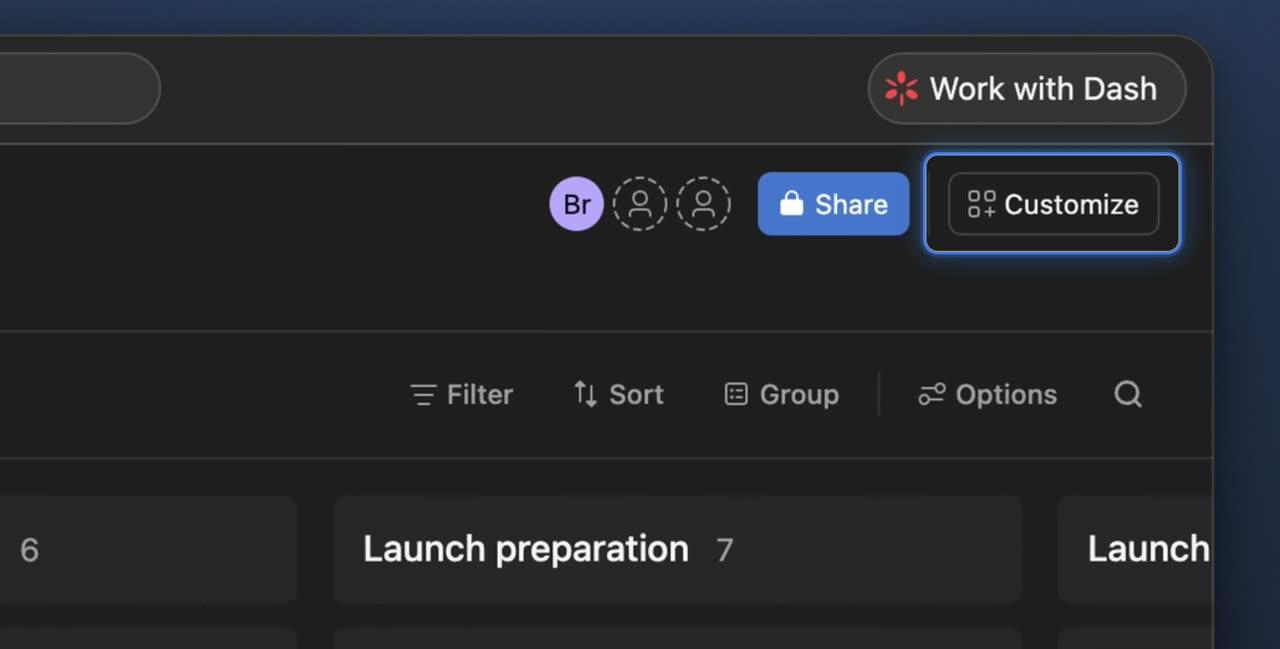
With the Product launch board open, click Customize. This opens the project customization options in a side panel.
4. Open Automations
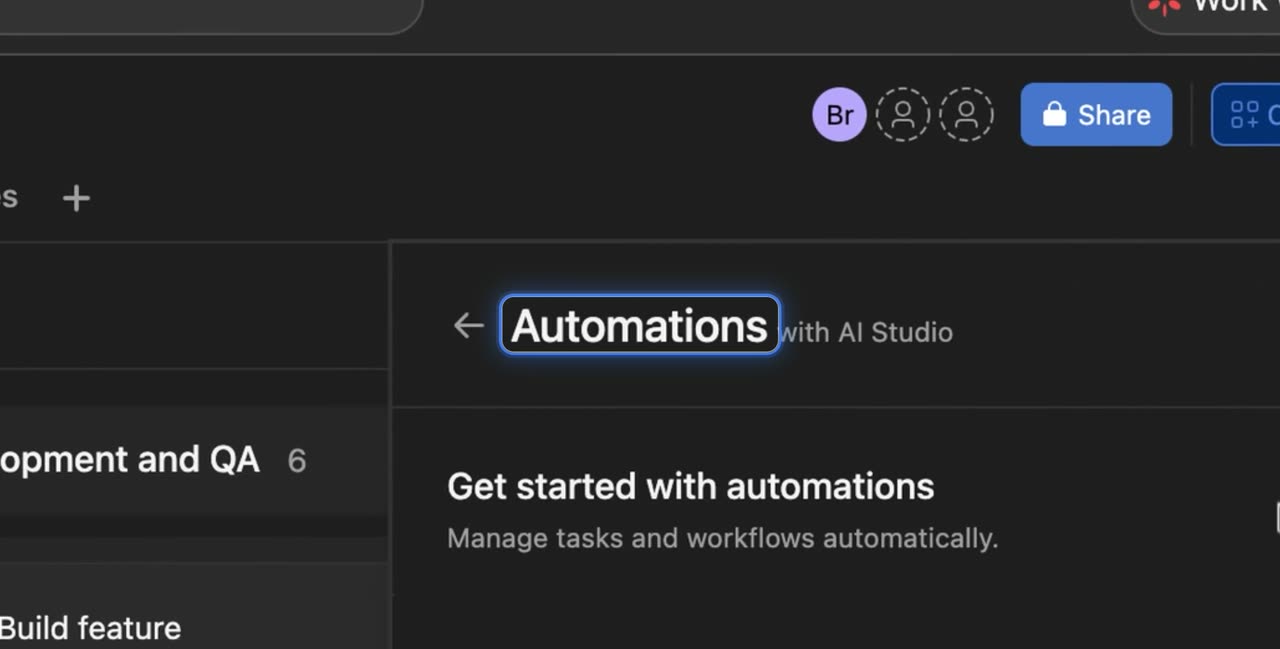
In the side panel, click Automations. This takes you to the area where you can build rules for the project.
5. Start a new automation
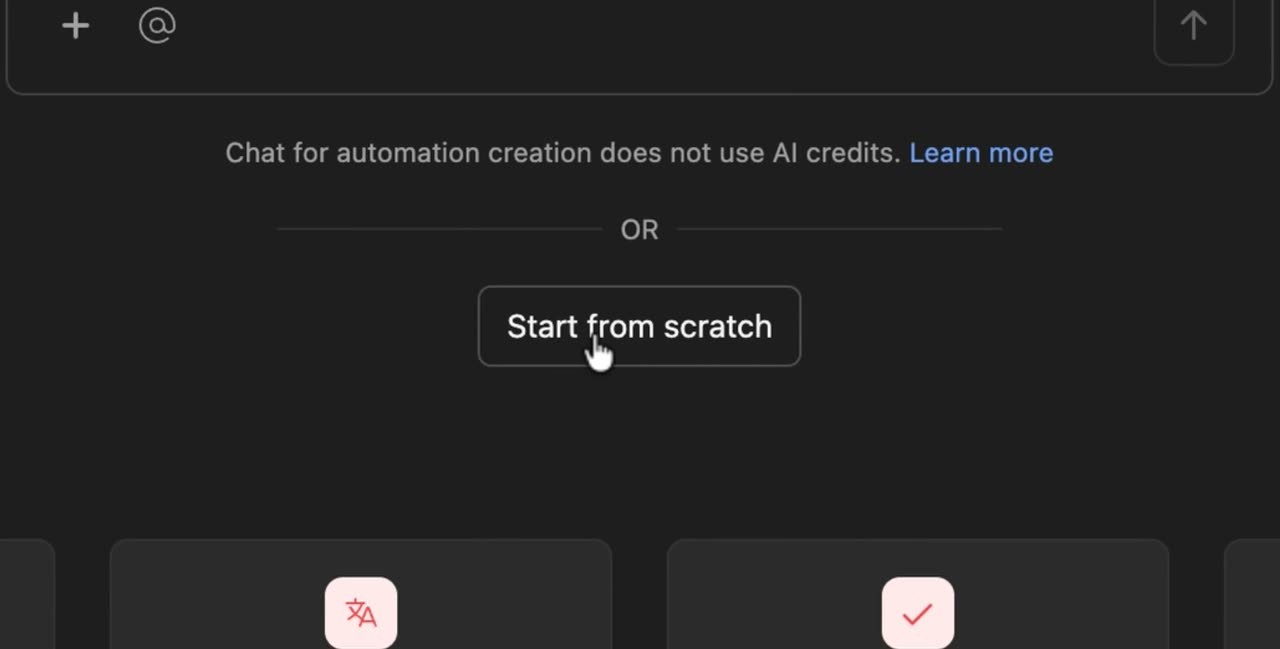
Under Add automation, click Start from scratch. This opens the automation builder for a new custom rule.
6. Add an action step
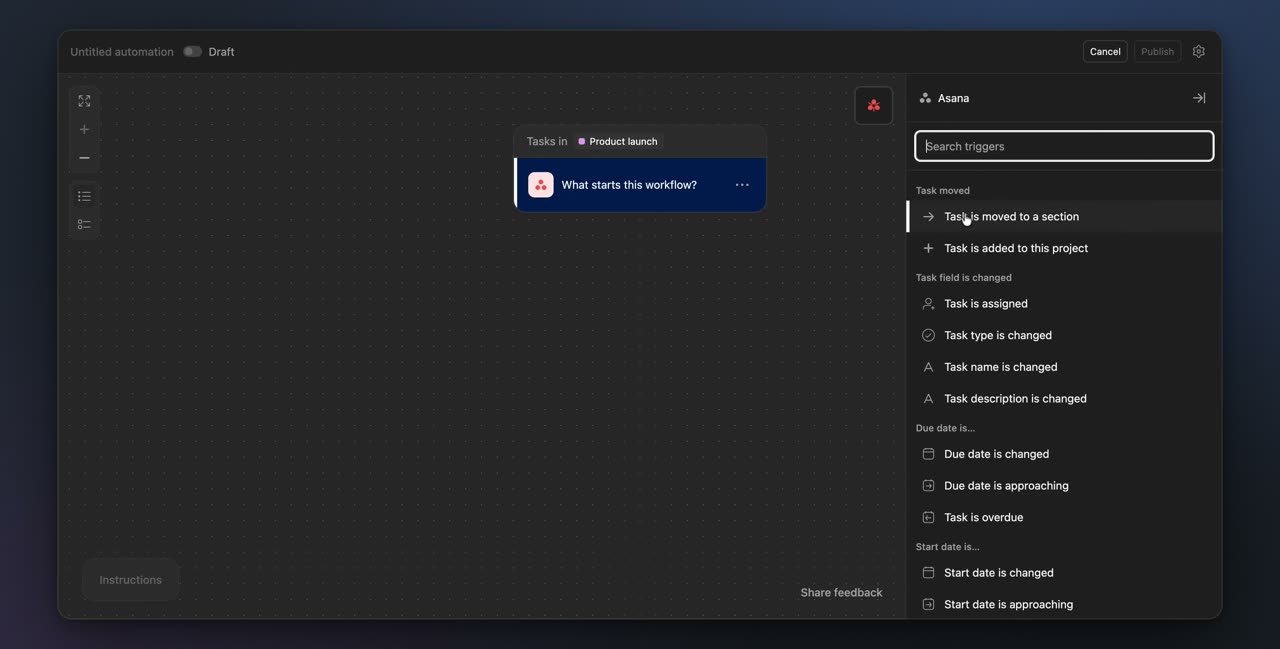
The builder already shows the trigger Task is moved to a section for Launch preparation. Click + Add step to choose what should happen after that trigger.
7. Publish the automation
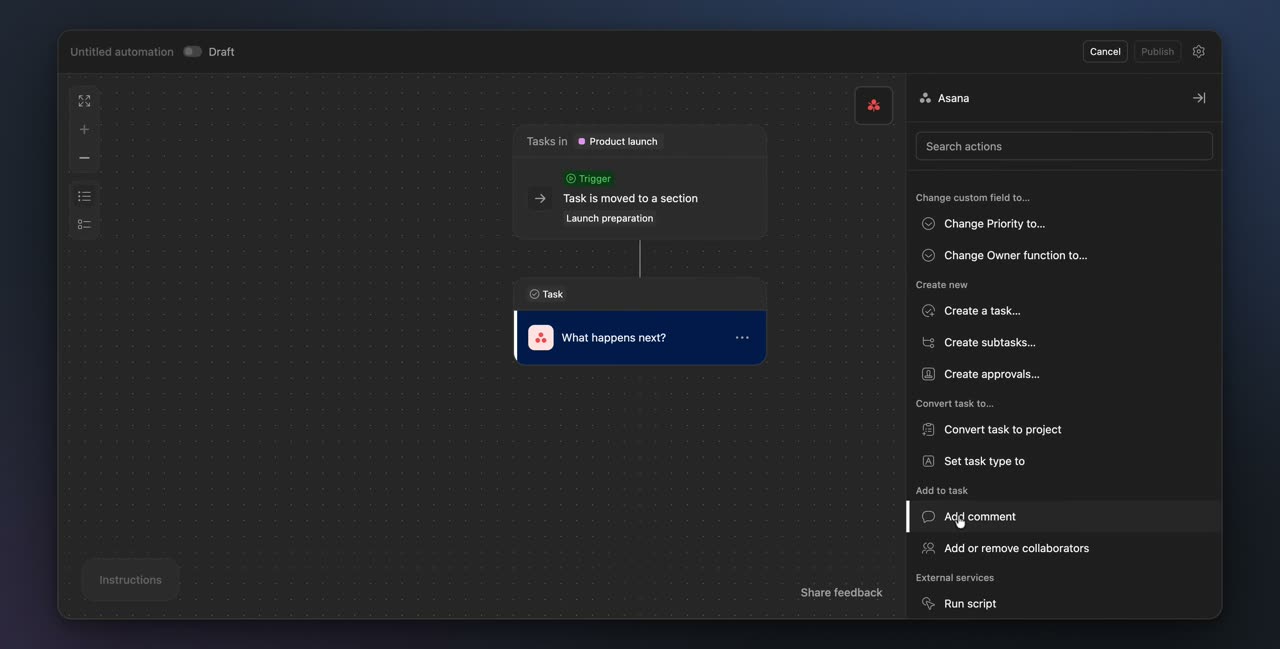
An Add comment action is already set to comment in Task, and the message field is filled in on the right. When everything looks correct, click Publish to activate the rule. After it publishes, the board returns and shows a confirmation message.
8. Open the task details
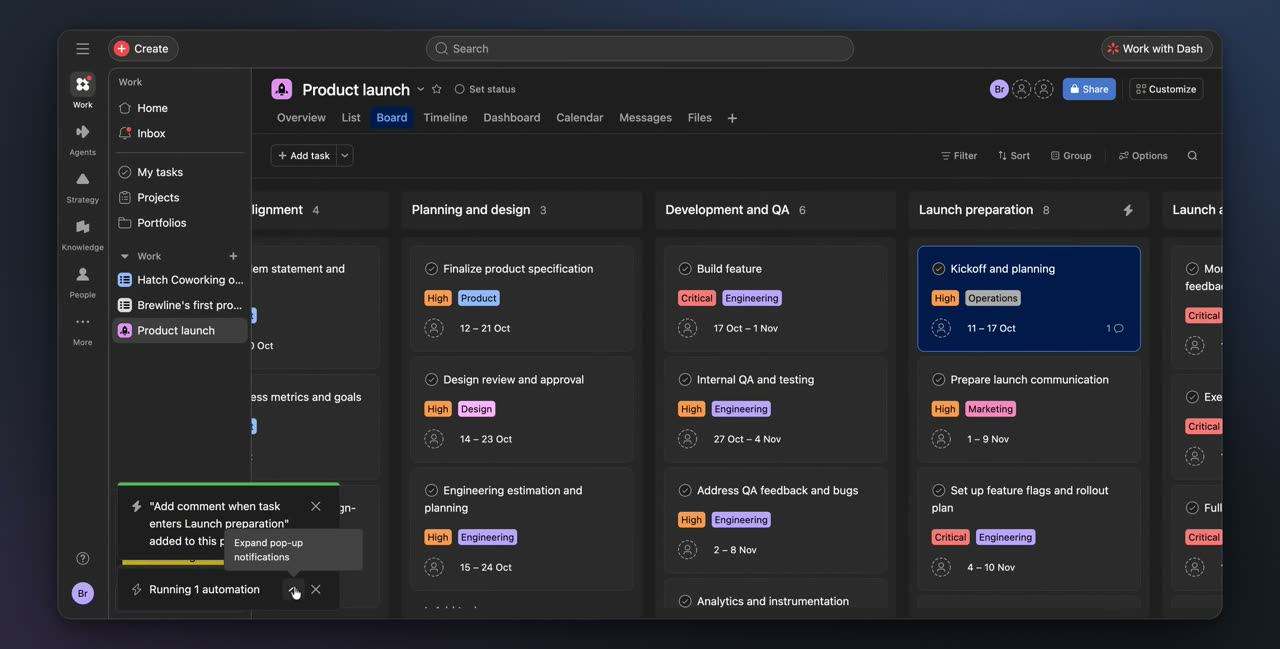
Back on the board, click Kickoff and planning in the Launch preparation section. The task details panel opens, then scroll to Comments to view the automated comment that was added.
You’ve created a project from a template and confirmed that its automation runs on a task.