The setup flow changed last sprint. The onboarding video didn't.
Record the flow once and give customers a narrated walkthrough, a clickable tour they follow at their own pace, a help article and versions in their language. When the UI moves, re-record that one flow and rebuild the lot.
Narrated walkthrough in the Studio style, made from a real recording of Asana (launching a project from a template). Sound on.
All 19 files from this Asana recordingEvery sprint moves a button. Every lesson needs re-recording.
Customer education content is made once and maintained forever. Onboarding videos, academy lessons and the walkthrough you send after a kickoff call all show screens that change every release, so CSMs fall back to screen-sharing the same flow live, one account at a time.
Every kickoff call and every "how do I…" ticket gets a screen-share. It's personal, but it doesn't scale, and nothing is left behind for the next person on the account.
Record, edit, voice, caption and translate each lesson. It looks good until the next redesign, and then nobody has the week it takes to redo it.
One recording gives you the narrated lesson, the clickable tour and the written steps. When the flow changes, re-record it and rebuild all three from the new take instead of re-editing each one.
- Narrated walkthrough with a spotlight on each step
- Clickable tour customers follow at their own pace
- Help article with a screenshot for every step
- Versions in 14 languages (Starter plan and up)
TurtleScene doesn't watch your product for changes. You re-record the flow; it rebuilds the rest.
Every release, every job
- 01Onboarding walkthroughsShort narrated videos and clickable tours for the first week, one per setup task.How it works
- 02Help-centre lessonsA video and a clickable version next to the articles customers already read.How it works
- 03What's new for customersA 30-second highlight and a GIF for each release, for the customer newsletter.How it works
- 04Account walkthroughsA clickable tour with the customer's name filled in from the link, behind a password if needed (Starter plan and up).
- 05Training in their languageThe same lessons in 14 languages for customers in other markets (Starter plan and up).How it works
Your onboarding kit, from one take
The real files from one recording of Asana, including the ones onboarding and training use most.
From one recording to shipped
- 01Record it as you'd show it
The week a flow changes, walk through it once in your browser in a demo account, talking as you would on a kickoff call. Or upload a screen recording you already have (MP4, WebM or MOV).
- 02Turn what you said into the script
TurtleScene transcribes your talk-through, matches each part to the step on screen and tidies it up. An AI voice reads it. Edit any line as text, then render.
- 03Put it where customers look
Link the video from the onboarding email, embed the clickable tour in your help centre, paste the article into your knowledge base and add languages for other regions.
Built for this job
Your explanation, without the ums
Talk through the flow while you record. TurtleScene transcribes it, matches each part to the step on screen and removes the repeats. One of 13 AI voices reads the result, so a lesson can be re-voiced after every edit without booking a session.
- Edit the narration as text, not on a timeline
- Captions (SRT and VTT) from the same script
- Pronunciation dictionary for product terms (Starter plan and up)
- 00:00Here's how to create and test
- 00:01a project automation in Asana.
- 00:04From Browse projects,
- 00:06click + Create project.
- 00:09Choose the Product launch template
- 00:11with Use template.
- 00:13Asana opens the new project
demo-captions.srt, from a real recording of Asana made with TurtleScene: “Launch a project from a template in Asana”.
A tour customers click through themselves
Every click in the recording becomes a step, with the element outlined and a tooltip with Back and Next. Embed it anywhere that takes an iframe, open it on a chosen step, and see views and how far people get on the Analytics page (full breakdown on Starter and up).
- Deep links that open on a chosen step
- {{company}} or {{name}} filled in from the link, per account
- Export as a PDF with every step's screenshot and tooltip
The clickable demo, from a real recording of Asana made with TurtleScene: “Launch a project from a template in Asana”.
The written steps, from the same take
The Formats tab writes a help article from the narrated video: a numbered section per step, each with a screenshot of that moment. You get Markdown for your knowledge base and a styled HTML page, as a draft to finish where it's published.
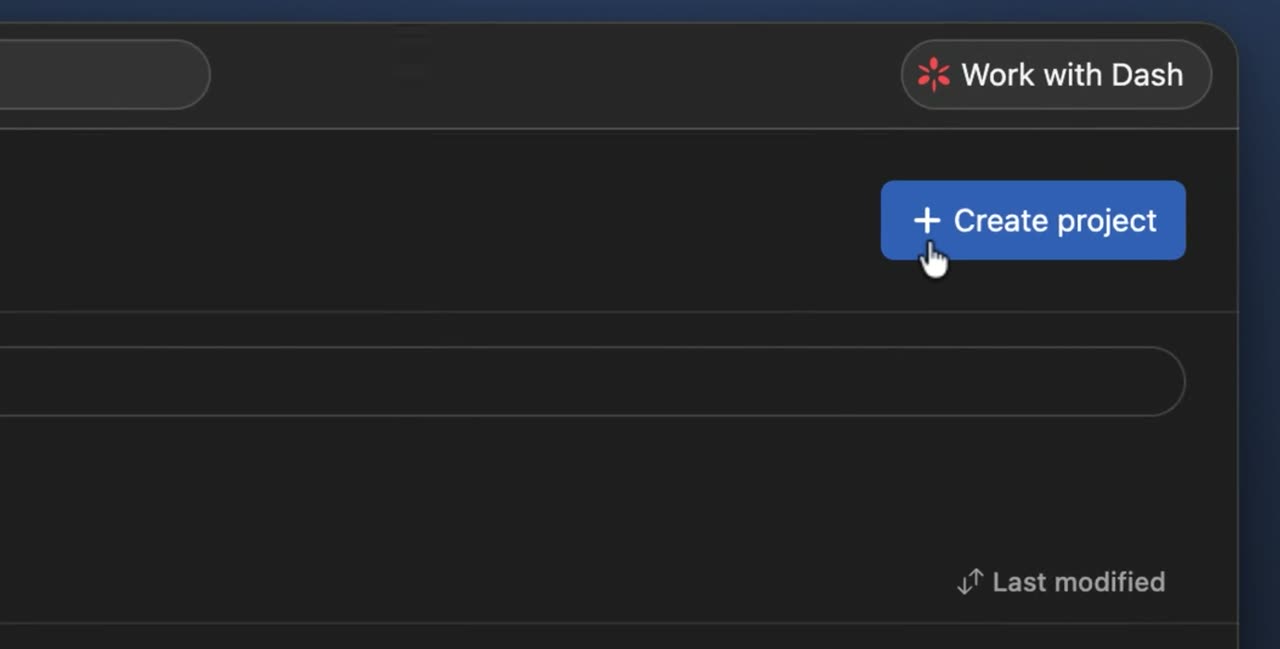
From Browse projects, click + Create project. This starts a new project from scratch or from a template.
article.md, from a real recording of Asana made with TurtleScene: “Launch a project from a template in Asana”.
Onboarding in 14 languages
Translated versions of the video (narration, step cards and captions) and of the clickable tour (tooltips, step titles and chapter names). The screens stay as recorded. Each language uses one recording from your allowance.
Narration, captions and step cards in the video; tooltips, buttons and the lead form in the clickable demo. The recorded screens themselves stay as recorded.
One library for the whole CS team
Recordings, videos and tours live in a shared workspace, and every member can open and edit them, so a lesson isn't stuck with whoever recorded it. Studio has 3 creator seats and Team 10, with admin roles on Team.
- Make another output from any stored recording
- Brand colours and logo set once for the workspace
raw-recording.mp4: 30 seconds of a recording of turtlecanvas, one of our own products, as it went in.
The release-note clip, straight from the recording
Customers skim the newsletter. The 30-second highlight picks the key moments of the walkthrough and burns in the captions, so the change is clear with the sound off. Nobody edited this file.
demo-highlight.mp4 from the same Asana recording, as TurtleScene made it.
All 19 files from this Asana recordingCustomer success and education: questions
Something else? Email contact@turtletechsai.com or book a working session.
Can customers follow along at their own pace?
Yes. Viewers step through the clickable tour with Back and Next, so they can follow along in their own account one step at a time. Viewers don't need a TurtleScene account, and you can embed the tour in your help centre or academy anywhere that accepts an iframe.
What happens when the flow changes?
Re-record the flow that changed and rebuild the video, tour, article and translations from the new take. A narrated video's share link always plays the latest render, so the link in your onboarding emails stays the same. TurtleScene doesn't watch your product or re-record by itself.
Can we use our own voices?
Your words, not your voice. TurtleScene can turn what you said while recording into the script, and one of 13 AI voices reads it. Your own voice doesn't appear in the finished video.
Can we make the lessons in customers' languages?
Yes, on Starter and up, in 14 languages. Narrated videos get translated narration, step cards and captions; story videos, narration and on-screen text; clickable tours get translated tooltips, step titles and chapter names. Text inside your recorded screens stays in its original language. Each language uses one recording from your monthly allowance.
Can we see whether customers finish the tour?
Views are counted on every plan. On Starter and up, the Analytics page adds completion rate, steps viewed, call-to-action clicks and a per-demo breakdown. Analytics cover clickable tours, not videos.
How many of us can work in it?
Free and Starter have one creator seat. Studio has 3 and Team 10, with admin roles on Team. Everyone in the workspace sees the same recordings and can edit the same work.
Related
- Use caseCustomer onboardingClickable walkthroughs and short narrated videos for the first week, rebuilt when the UI moves.Read
- Use caseHelp-centre videosEach help article with a narrated video, a clickable version and step screenshots from one recording.Read
- Use caseLocalisationThe same demo in 14 languages: narration, captions, step cards and tooltips (Starter).Read
- Use caseRelease notes and changelog videosEvery changelog entry gets a 30-second highlight and a GIF people actually open.Read
- TeamSupport and docsHelp articles that come with a video and a clickable demo, from the recording you'd make anyway.Read
- TeamProduct marketingLaunch every release with the full kit, not just a blog post and a screenshot.Read
Independent tutorials we recorded ourselves. Asana is a trademark of their owners; TurtleScene is not affiliated with or endorsed by them.
Your next release ships soon. Ship the explanation with it.
Start free and record your first flow in the browser, or book a working session and we'll build a kit from one of your flows with you.