All examples
Notion AI

Plan a project with Notion AI

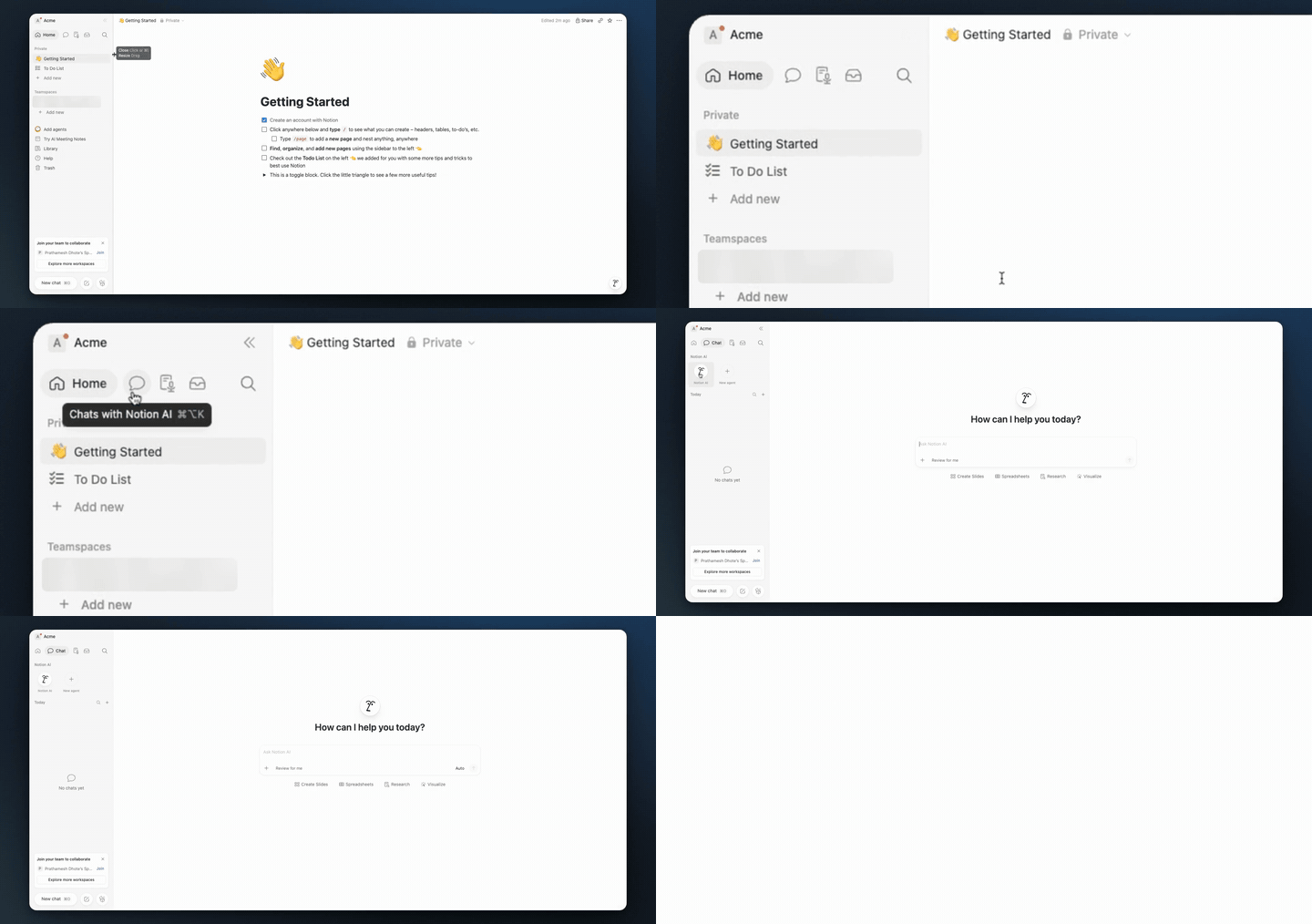
One 1:12 screen recording, 6 clicks, no script. TurtleScene turned it into everything below. Nothing was edited by hand.

In1:12 recording
Out19
  • 10 videos
  • 1 clickable demo
  • 2 GIFs
  • 2 thumbnails
  • 2 caption tracks
  • 1 help article
  • 1 set of launch posts
The three main outputs

Watch it, click through it, or share the story.

Script, AI voiceover, zooms and a highlight on each step, all generated from the recording. Turn the sound on.

Cut for social · 8 videos

Every shape a feed asks for.

Captions are burned in, in big phrases, so they play muted. The narrated video gets vertical and square cuts that follow every click under a step header, and a 30-second highlight in landscape and 9:16. The story video is laid out again for each shape: vertical and square cuts, and its highlight in landscape and 9:16.

Vertical cut
Reels, Shorts, TikTok · 0:46
Square cut
LinkedIn and X · 0:46
30-second highlight
Emails and landing pages · 0:33
Vertical highlight
Stories and ads · 0:33
Written from the same recording

The docs and the launch copy come with it.

Help article

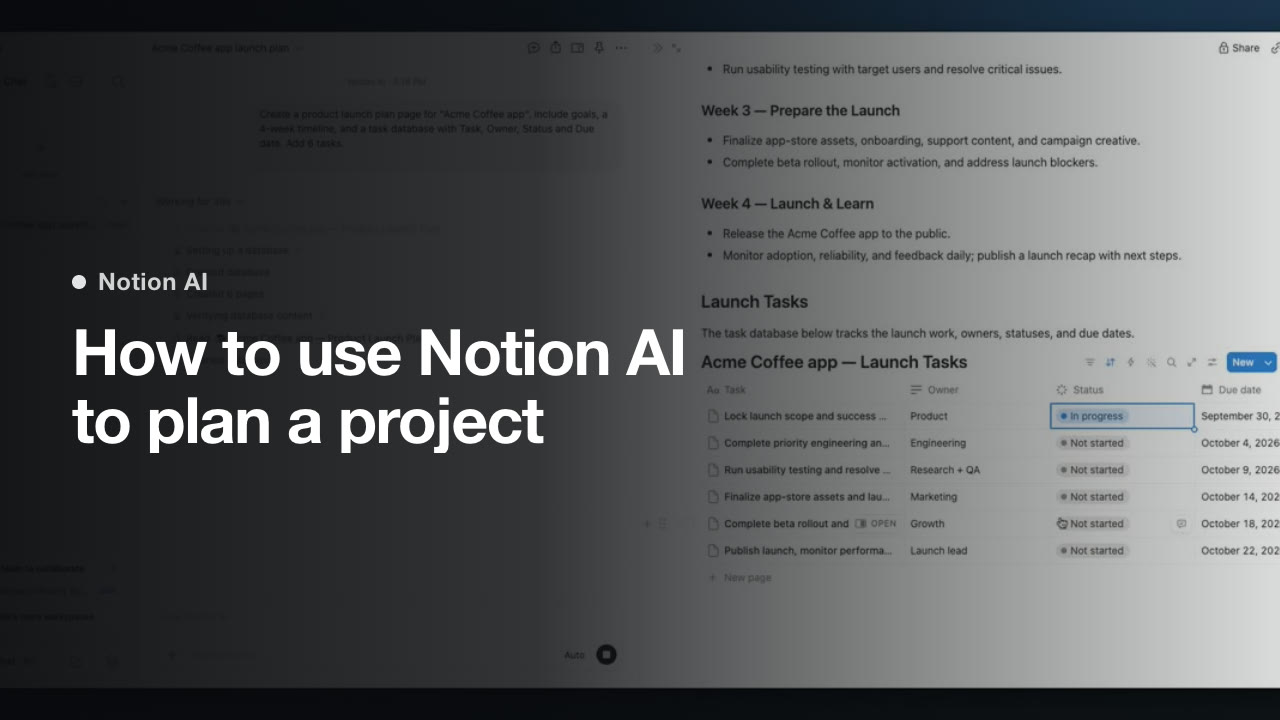
How to use Notion AI to plan a project

Use Notion AI to generate a project plan from a prompt, then update a task in the plan. Follow these steps in order if you're using this workflow for the first time.

1. Open AI Chat
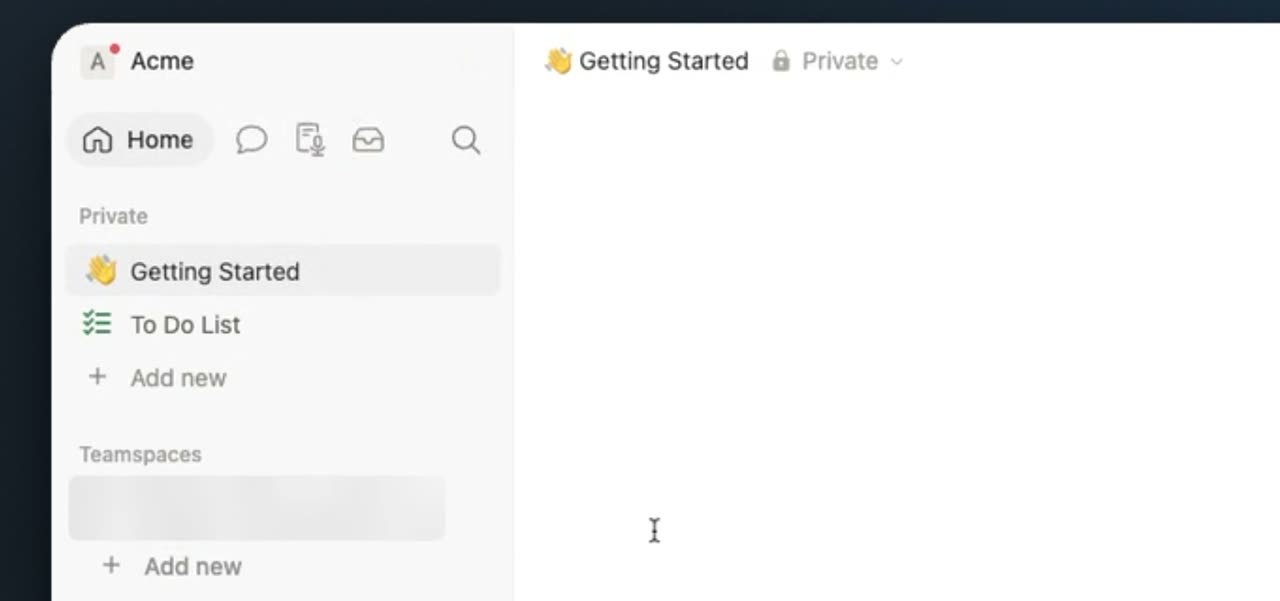
Open AI Chat

Click AI Chat in the left navigation sidebar. This opens the assistant prompt view.

2. Enter your project prompt
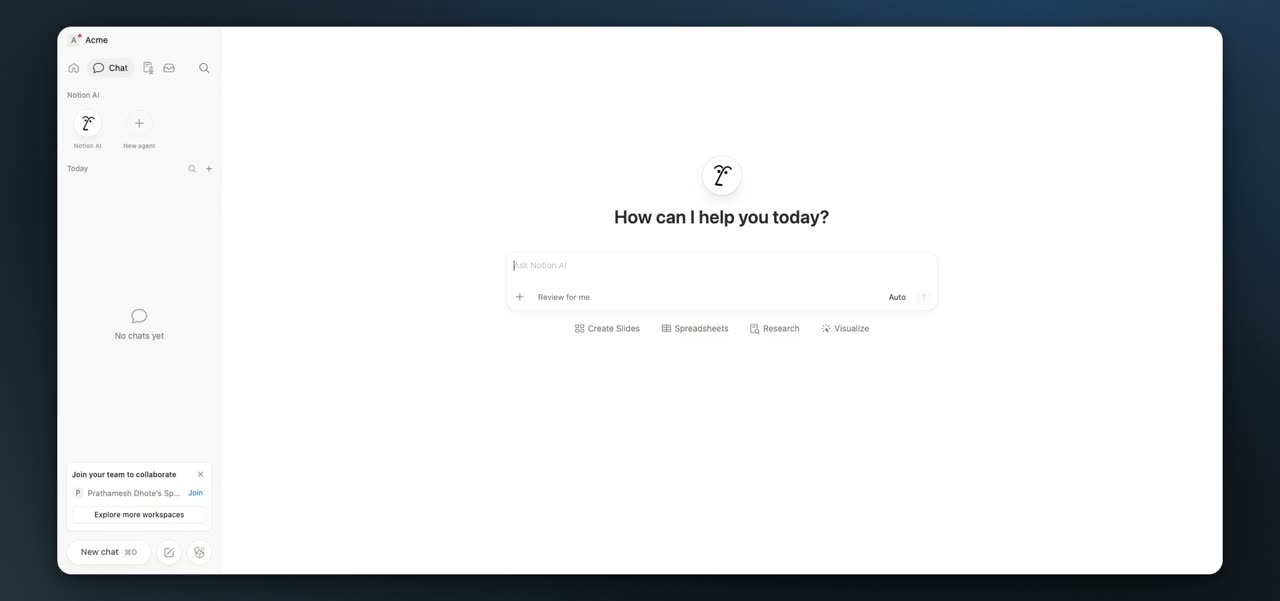
Enter your project prompt

Type a detailed request into the main prompt input box. Describe the project plan you want Notion AI to create as clearly as you can.

3. Send your prompt

Send your prompt

Click the arrow button to submit your prompt. This starts the project plan generation.

4. Open the generated plan
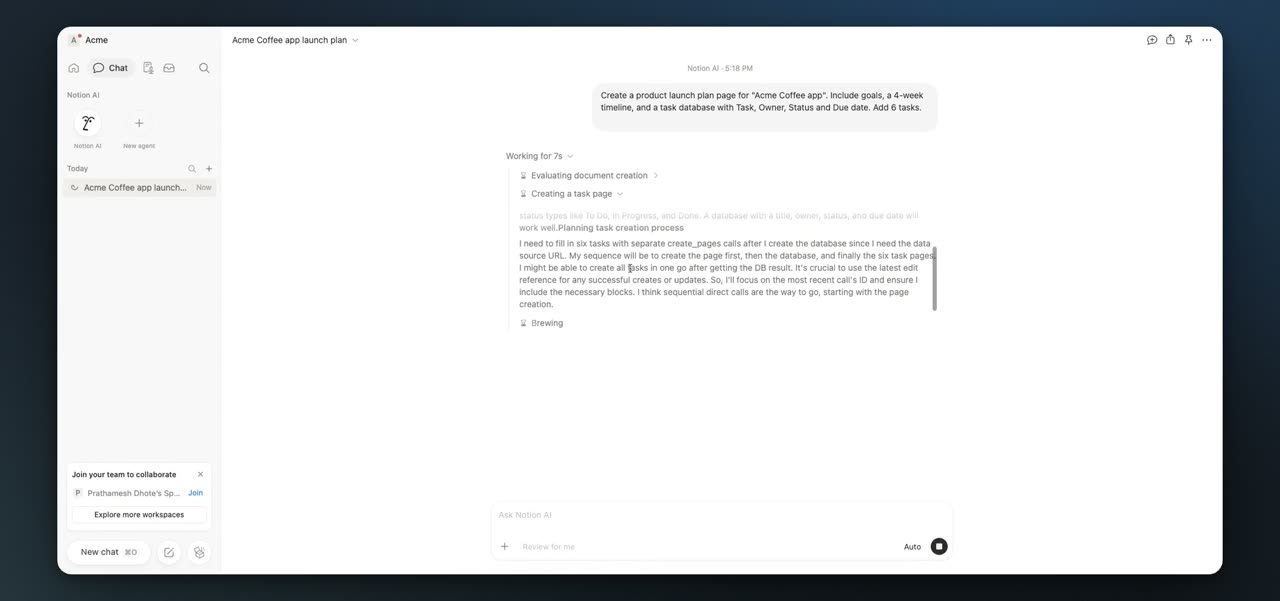
Open the generated plan

When the draft appears, click the document preview under Artifacts. This expands the full project plan so you can review the generated tasks.

5. Open a task's status menu
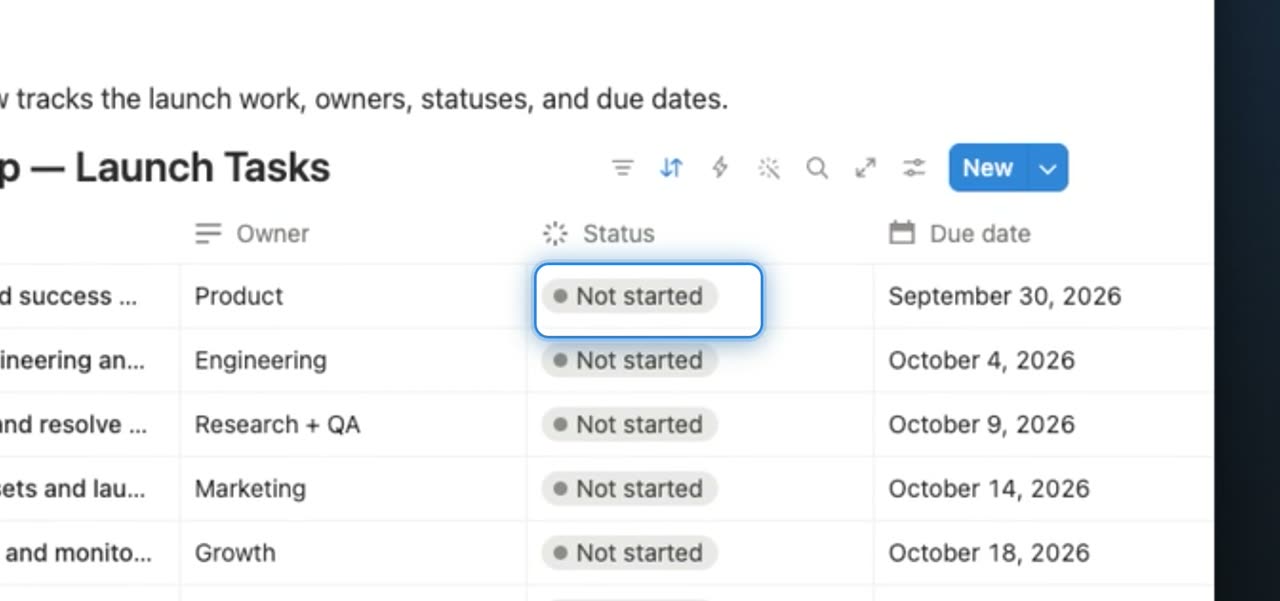
Open a task's status menu

In the generated database, click a task's status field. This opens the menu for changing that task's progress.

6. Set the task to In progress
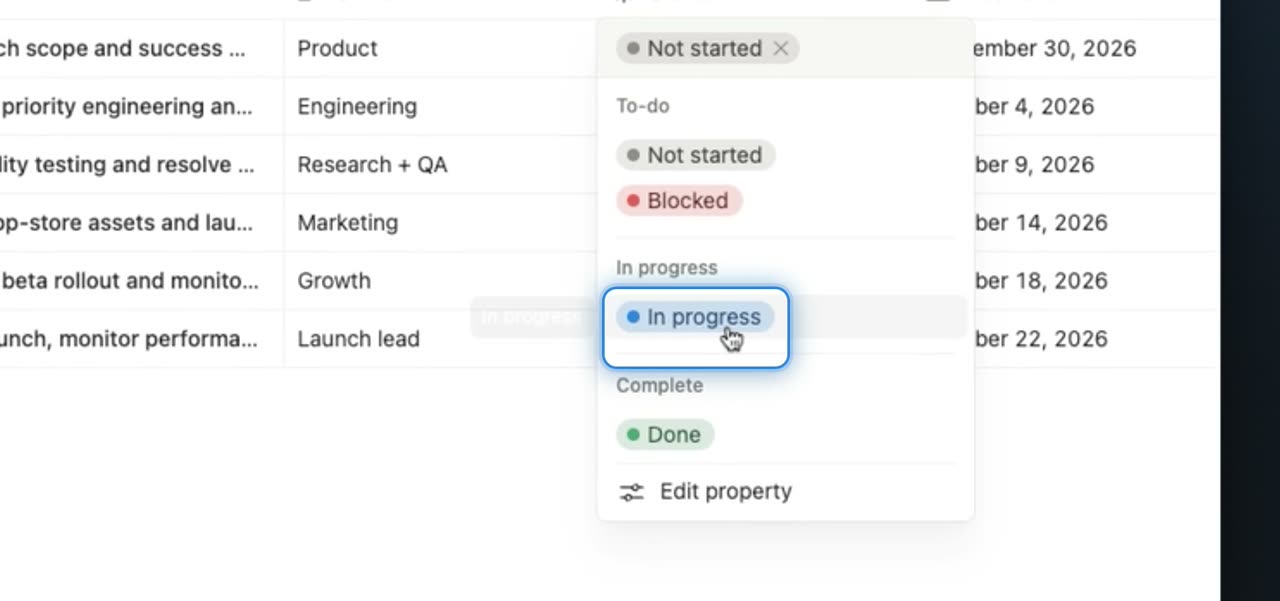
Set the task to In progress

Select In progress from the status menu. This updates the task's current status.

After that, you can review the plan and continue updating tasks as your project moves forward.
Launch posts
You
Your company
LinkedIn post · written by TurtleScene

Project planning usually breaks down into the same three parts: goals, a timeline, and the tasks to get the work done. The hard part is turning a rough idea into something structured without spending too long building it by hand.

This video shows a simple way to do that in Notion AI.

Start by opening the chat icon in the sidebar and entering a project prompt with your goals and tasks. From there, Notion AI evaluates the request and generates three useful pieces in one flow: goals, a four-week timeline, and a task database.

The walkthrough also shows what to do next: open the generated plan from Artifacts, review the output, and update a task status to in progress so tracking can begin right away.

By the end, you can see six tasks with owners and due dates organized in one place.

If you're using Notion AI for the first time and want a practical example of how to turn one prompt into a workable project plan, this is a helpful walkthrough. Watch the video. #NotionAI #ProjectPlanning #HowTo

You
Your company
X post · written by TurtleScene

Planning a project from scratch is slow. This video shows how one prompt in Notion AI can generate goals, a four-week timeline, and a task database—then start tracking work right away. Watch the walkthrough. #NotionAI #ProjectPlanning

Read the blog post

How to use Notion AI to plan a project with a single prompt

Turn a rough project idea into a structured plan

Project planning often starts with the same basic needs: clear goals, a realistic timeline, and a list of tasks to move the work forward. The challenge is getting all of that into one place without building the plan manually from scratch.

This video walks through how to use Notion AI to plan a project with a single prompt. It is designed as a first-time-user explainer, showing what the feature does and the steps to follow inside the app.

What the video covers

The walkthrough begins with a common problem: a launch plan needs goals, a timeline, and tasks, but creating each part by hand takes time.

From there, the video shows the exact setup process:

  • Open the chat icon in the sidebar
  • Type a project prompt that includes goals and tasks
  • Send the request to Notion AI

Once the prompt is submitted, Notion AI evaluates the request and generates three parts of the plan:

  • Goals
  • A four-week timeline
  • A task database

This makes it easier to move from an initial idea to a plan you can review and use.

What happens next

The video also shows how to work with the generated output after it appears. You can open the plan from Artifacts, review the structure, and begin tracking execution by updating a task's status.

In the example shown, marking a task as in progress is the first step in turning the generated plan into active work.

By the end of the walkthrough, six tasks with owners and due dates are organized in one place. That gives first-time users a clear picture of how a single prompt can produce a usable starting point for project planning.

Watch the walkthrough

If you want a practical look at using Notion AI to go from prompt to project plan, this video shows the full flow step by step. Watch the video and try it on your next project.

Captions · narrated video
  1. 00:02Start by clicking AI Chat
  2. 00:04in the left sidebar to open the assistant.
  3. 00:08Now type a clear prompt describing
  4. 00:11the project plan you want
  5. 00:12Notion AI to create.
  6. 00:14Then click the arrow to send your prompt.
  7. 00:21When the draft appears,
  8. 00:22click the document preview under Artifacts
  9. 00:25to open the full project plan
  10. 00:27and review the generated tasks.
  11. 00:33To make changes, click
  12. 00:35a task’s status field in the database.
  13. 00:39Choose In progress to update
  14. 00:41that task’s current status.
Captions · story video
  1. 00:00Here's how to plan a project
  2. 00:01with a single prompt in Notion AI.
  3. 00:05A launch plan needs goals,
  4. 00:07a timeline and tasks,
  5. 00:09and building it by hand is slow.
  6. 00:12Open the chat icon in the sidebar,
  7. 00:15type your project prompt with goals
  8. 00:17and tasks, then send it to Notion AI.
  9. 00:21Notion AI evaluates the request,
  10. 00:24then builds goals, a four-week timeline,
  11. 00:27and a task database.
  12. 00:29Open the generated plan from Artifacts,
  13. 00:32click a task's status menu,
  14. 00:35and mark it in progress to start tracking.
  15. 00:39Moments later, six tasks with owners
  16. 00:41and due dates sit in one place.
  17. 00:45Try it on your next project
  18. 00:47with Notion AI.
For previews and link cards

GIFs and thumbnails, from both videos.

GIF · narrated video
GIF · narrated videoChangelogs, READMEs, emails
GIF · story video
GIF · story videoChangelogs, READMEs, emails
Thumbnail · narrated video
Thumbnail · narrated videoYouTube and link previews
Thumbnail · story video
Thumbnail · story videoYouTube and link previews

Independent tutorials we recorded ourselves. Notion is a trademark of their owners; TurtleScene is not affiliated with or endorsed by them.

Your next product demo is one recording away

Record a flow on the free plan and watch it come back narrated, clickable and on-brand in a few minutes.

  • No credit card
  • 2 free recordings a month
  • Cancel any time