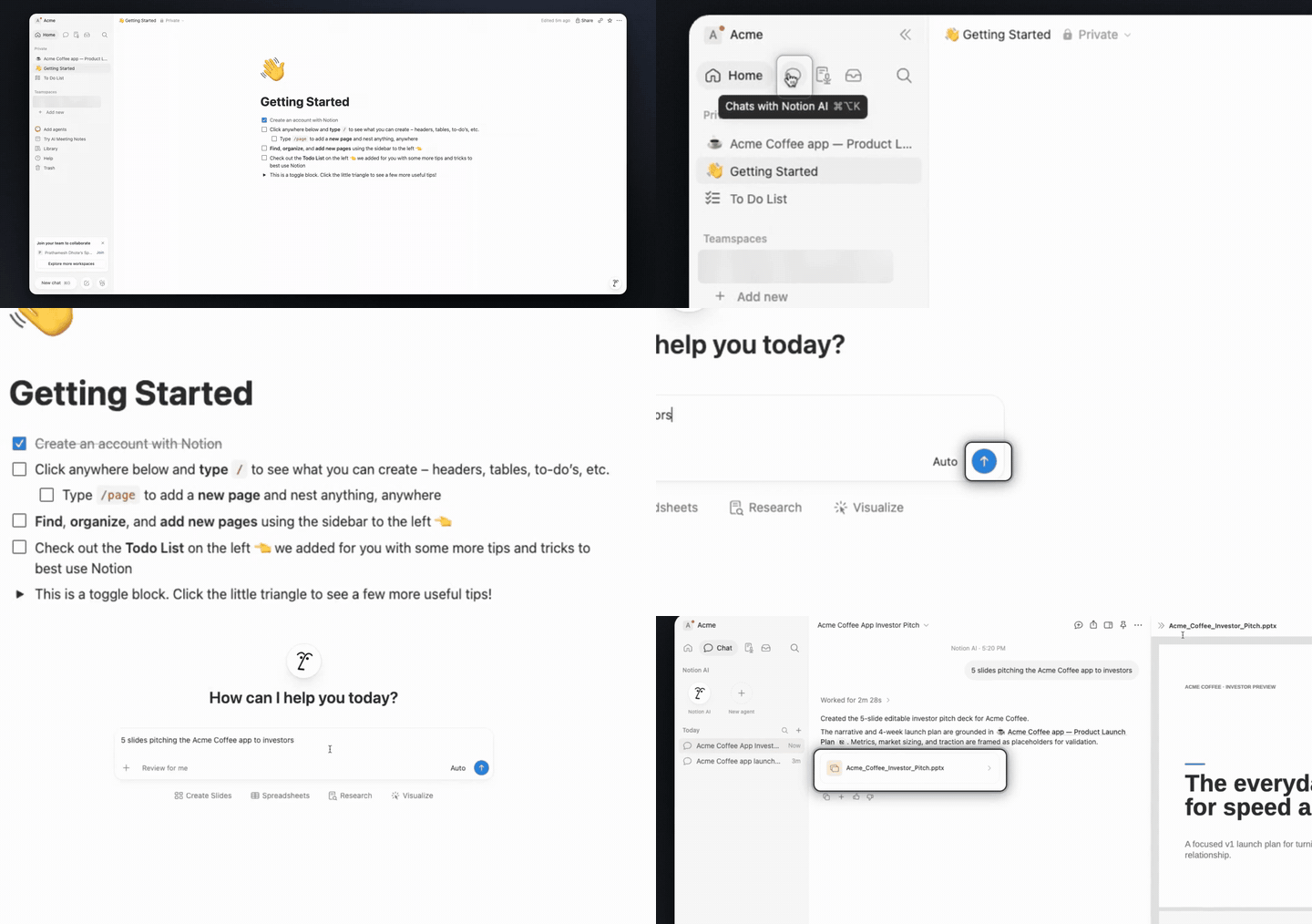
All examples
Notion AI

Create slides with Notion AI

One 3:01 screen recording, 4 clicks, no script. TurtleScene turned it into everything below. Nothing was edited by hand.

In3:01 recording
Out19
  • 10 videos
  • 1 clickable demo
  • 2 GIFs
  • 2 thumbnails
  • 2 caption tracks
  • 1 help article
  • 1 set of launch posts
The three main outputs

Watch it, click through it, or share the story.

Script, AI voiceover, zooms and a highlight on each step, all generated from the recording. Turn the sound on.

Cut for social · 8 videos

Every shape a feed asks for.

Captions are burned in, in big phrases, so they play muted. The narrated video gets vertical and square cuts that follow every click under a step header, and a 30-second highlight in landscape and 9:16. The story video is laid out again for each shape: vertical and square cuts, and its highlight in landscape and 9:16.

Vertical cut
Reels, Shorts, TikTok · 0:25
Square cut
LinkedIn and X · 0:25
30-second highlight
Emails and landing pages · 0:22
Vertical highlight
Stories and ads · 0:22
Written from the same recording

The docs and the launch copy come with it.

Help article

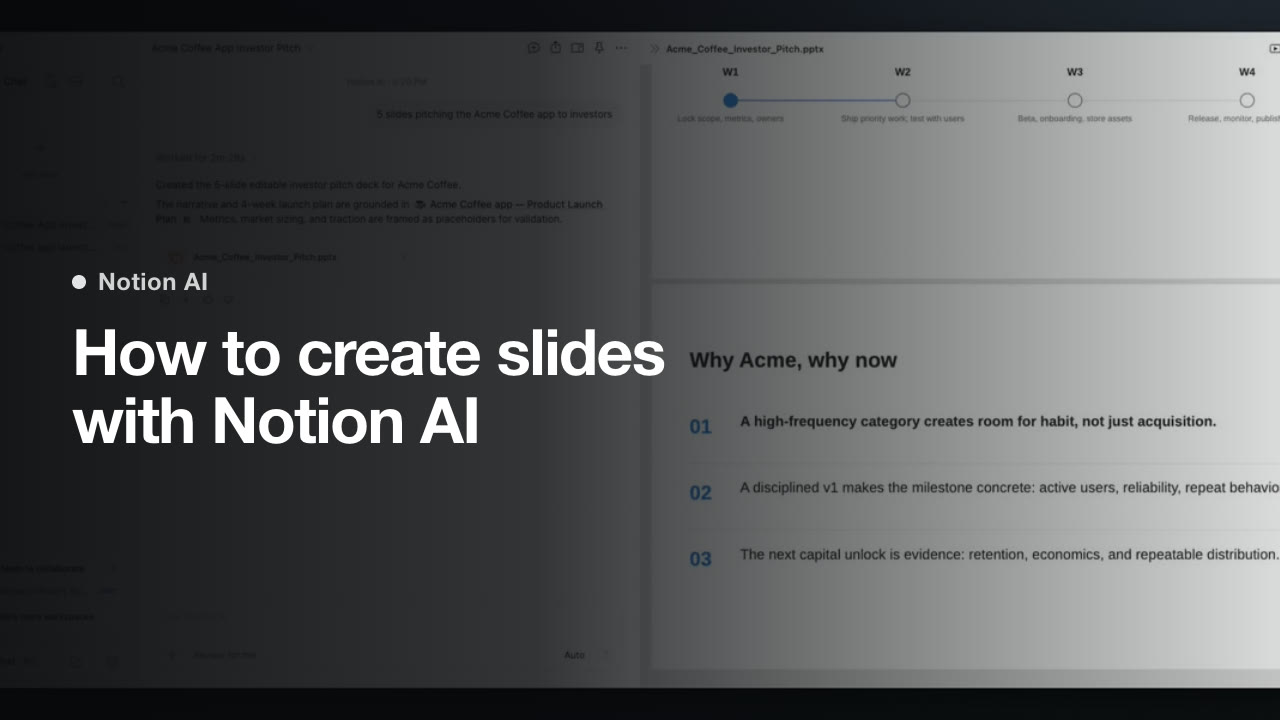
How to create slides with Notion AI

Use Notion AI Chat to generate a slide deck from a prompt and preview the result. Follow these steps in order if you're doing this for the first time.

1. Open Notion AI Chat
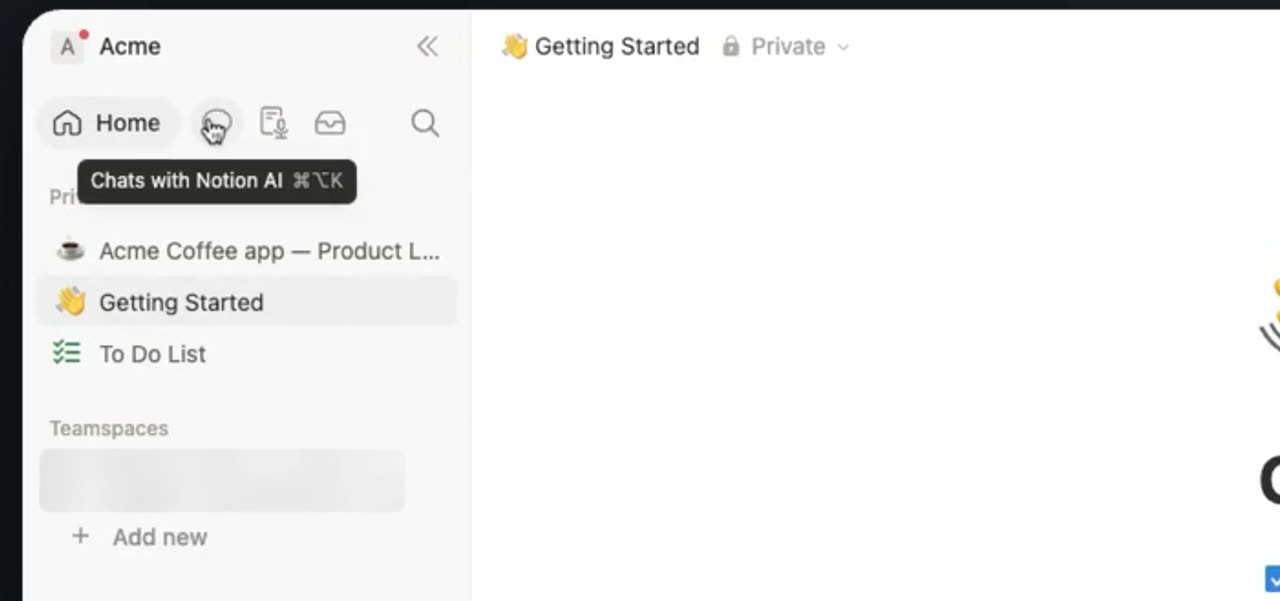
Open Notion AI Chat

Click Chat in the left sidebar. This opens the AI prompt interface where you can ask Notion AI to create your slides.

2. Submit your slide prompt

Submit your slide prompt

Type a prompt that describes the slides you want to create. Then click the submit button to generate the deck.

3. Open the generated slide deck
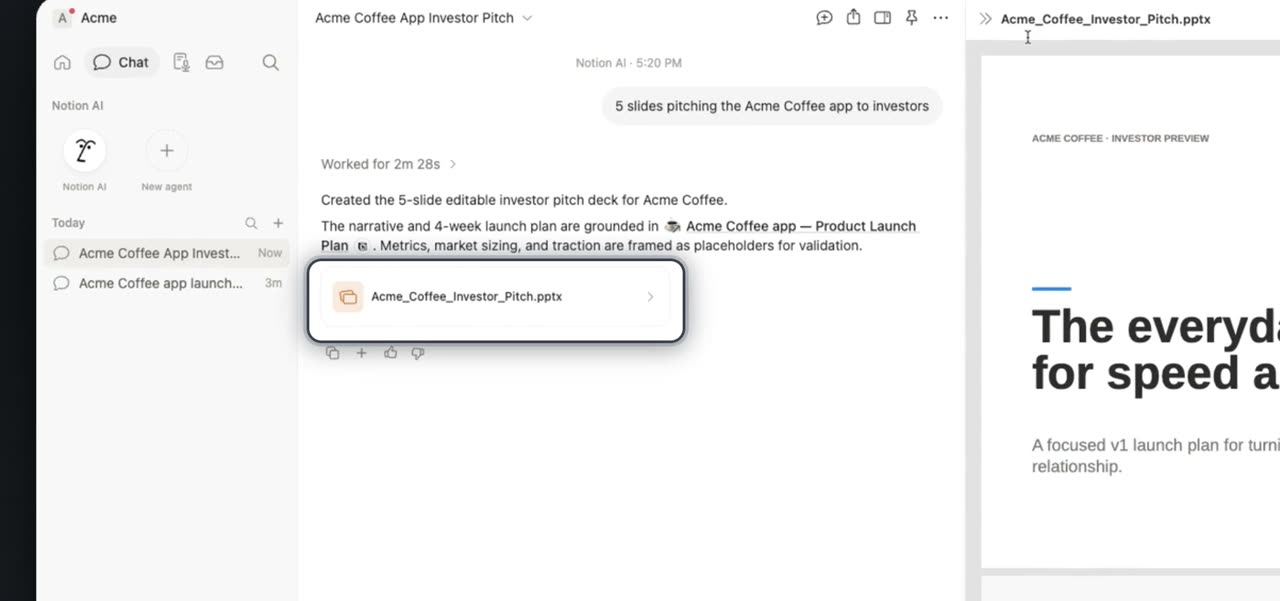
Open the generated slide deck

Wait for the result to appear, then click the generated PowerPoint file card. This opens a side-by-side preview of your slide deck.

4. Close the side preview
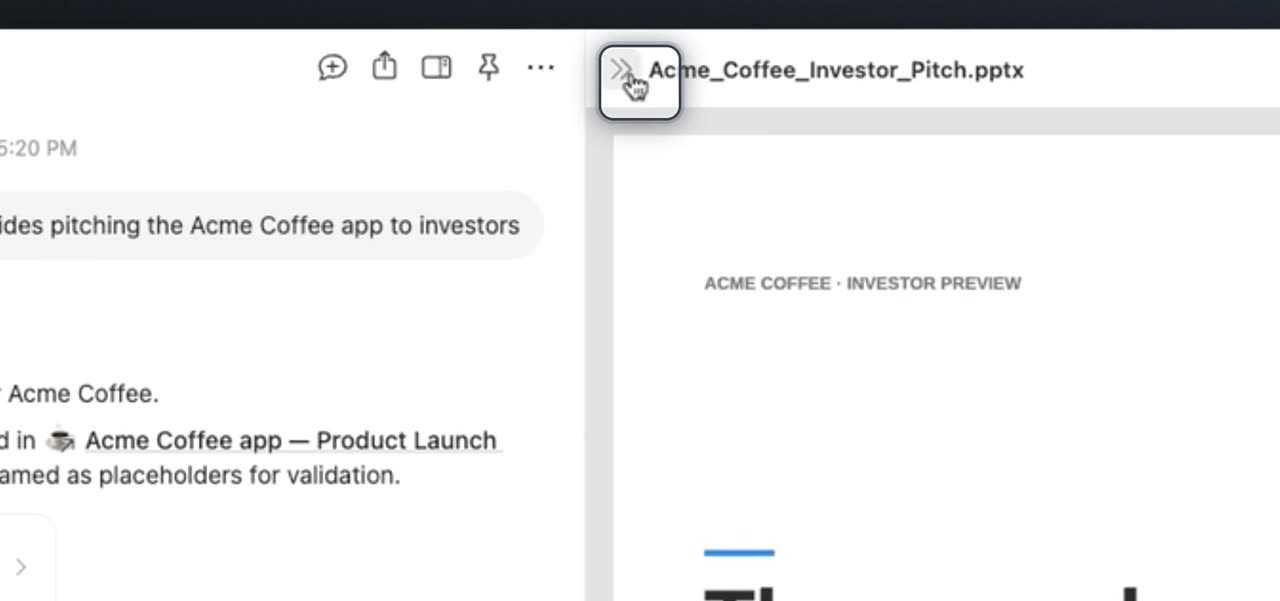
Close the side preview

Click the top bar button to close the slide deck preview pane. This returns you to the main view after reviewing the slides.

After that, you can review the generated deck and continue working from the main Notion view.
Launch posts
You
Your company
LinkedIn post · written by TurtleScene

Creating a pitch deck usually means doing three jobs at once: outlining the story, writing the slides, and designing the presentation.

This video shows a simpler starting point in Notion AI: one plain prompt.

You’ll see the basic workflow for first-time users:

Open the Chat tab, describe the deck you want, and let Notion AI generate a PowerPoint file. Then open the finished file to preview the slides.

The walkthrough also explains what happens after you ask. Notion AI reads your pages, builds the slides, reviews them visually, and returns an editable deck.

In the example shown here, a single prompt turns an existing launch plan into five editable investor slides.

One especially useful detail: metrics and market sizing show up as clear placeholders, so you can validate every number before sharing anything externally.

If you want to understand what slide creation in Notion AI actually looks like, step by step, this video is a good place to start.

Watch the video to see how to create your next deck from a single prompt. #NotionAI #Productivity #Presentations

You
Your company
X post · written by TurtleScene

From blank page to editable deck with one prompt.

This video shows how to create slides in Notion AI: open Chat, describe your deck, generate the file, and preview the slides. Watch the walkthrough. #NotionAI #Presentations

Read the blog post

How to create slides with Notion AI from a single prompt

Turn a plain prompt into a slide deck

Building a pitch deck from scratch usually means starting with a blank page and doing everything manually: shaping the narrative, writing each slide, and figuring out the design.

This video walks through a different approach in Notion AI. Instead of building slide by slide, you start with one plain-language prompt and let the tool generate a deck for you.

What the video shows

The walkthrough is designed for first-time users who want to understand the basic flow.

It starts in the Chat tab, where you describe the deck you want to create. Once Notion AI finishes, you open the generated PowerPoint file to preview the slides.

The video also explains what happens after you submit your request. Notion AI reads your pages, builds the slides, reviews them visually, and delivers an editable deck.

What the output looks like

In the example shown, one prompt produces five editable investor slides grounded in an existing launch plan.

That matters because it shows the tool working from source material you already have, rather than generating slides in a vacuum. The result is a draft deck you can review, edit, and refine.

Another useful detail is how the content handles uncertain inputs. Metrics and market sizing appear as clear placeholders, which makes it easier to verify every number before the deck is shared.

Why this workflow is useful

For anyone creating presentations, the biggest challenge is often momentum. Getting from idea to first draft takes time, especially when you are switching between planning, writing, and formatting.

This workflow helps you get to an editable starting point faster. Rather than manually assembling every slide, you describe the deck, review the generated output, and validate the details that need human judgment.

If you want a clear look at how slide creation works in Notion AI, this video is a practical place to begin.

Watch the video and try building your next deck from a single prompt.

Captions · narrated video
  1. 00:02Start by clicking Chat in the left sidebar
  2. 00:05to open Notion AI.
  3. 00:07Type what slides you want,
  4. 00:09then click submit to generate the deck.
  5. 00:16When it’s ready, click the PowerPoint
  6. 00:19file card to preview the slides.
  7. 00:22Then click the top bar button
  8. 00:24to close the preview pane again.
Captions · story video
  1. 00:00Here is how to create
  2. 00:01a slide deck with Notion AI,
  3. 00:04starting from one plain prompt.
  4. 00:07Building a pitch
  5. 00:08from scratch means outlining, writing
  6. 00:10and designing every slide yourself.
  7. 00:14First, open the Chat tab
  8. 00:16and describe your deck. When it finishes,
  9. 00:18open the finished PowerPoint file
  10. 00:20to preview the slides.
  11. 00:23Behind the scenes,
  12. 00:24Notion AI reads your pages,
  13. 00:26builds the slides, reviews them visually,
  14. 00:28and delivers an editable deck.
  15. 00:31Here, one prompt produced
  16. 00:33five editable investor slides,
  17. 00:35grounded in an existing launch plan.
  18. 00:39Metrics and market sizing arrive
  19. 00:41as clear placeholders, so you validate
  20. 00:44every number before sharing.
  21. 00:47Open Notion AI, write your prompt,
  22. 00:50and try building your next deck.
For previews and link cards

GIFs and thumbnails, from both videos.

GIF · narrated video
GIF · narrated videoChangelogs, READMEs, emails
GIF · story video
GIF · story videoChangelogs, READMEs, emails
Thumbnail · narrated video
Thumbnail · narrated videoYouTube and link previews
Thumbnail · story video
Thumbnail · story videoYouTube and link previews

Independent tutorials we recorded ourselves. Notion is a trademark of their owners; TurtleScene is not affiliated with or endorsed by them.

Your next product demo is one recording away

Record a flow on the free plan and watch it come back narrated, clickable and on-brand in a few minutes.

  • No credit card
  • 2 free recordings a month
  • Cancel any time