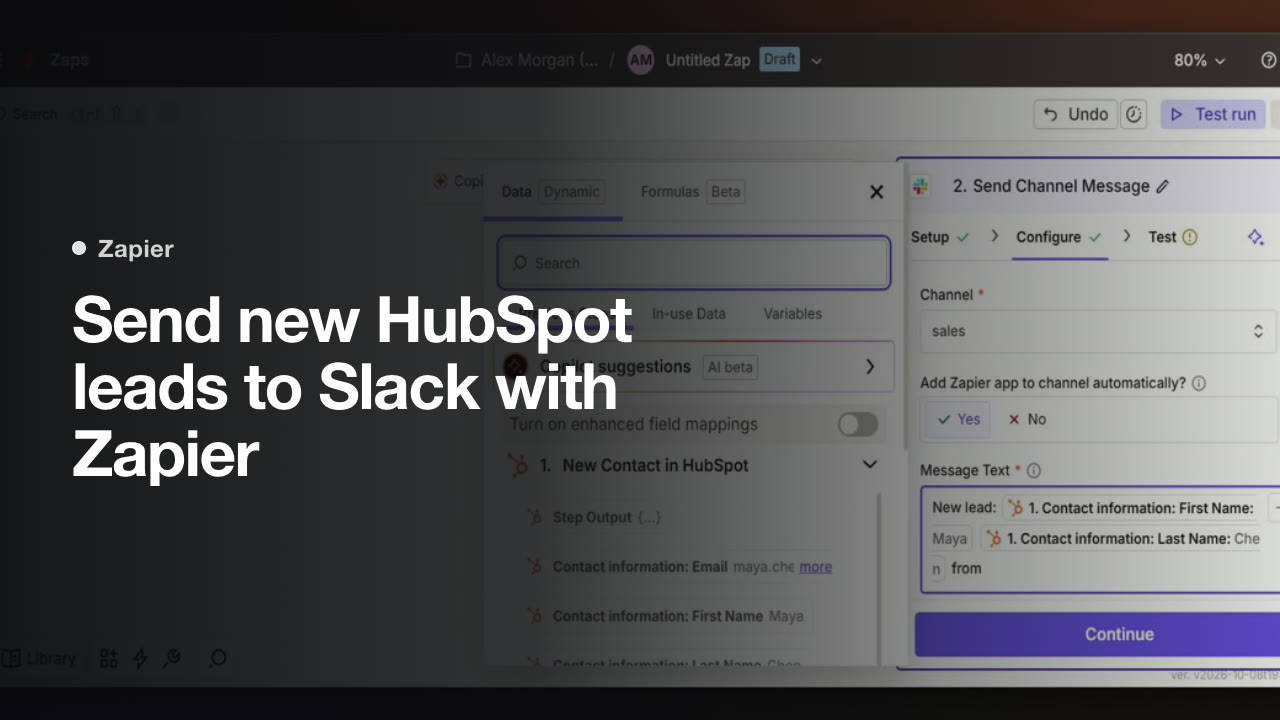
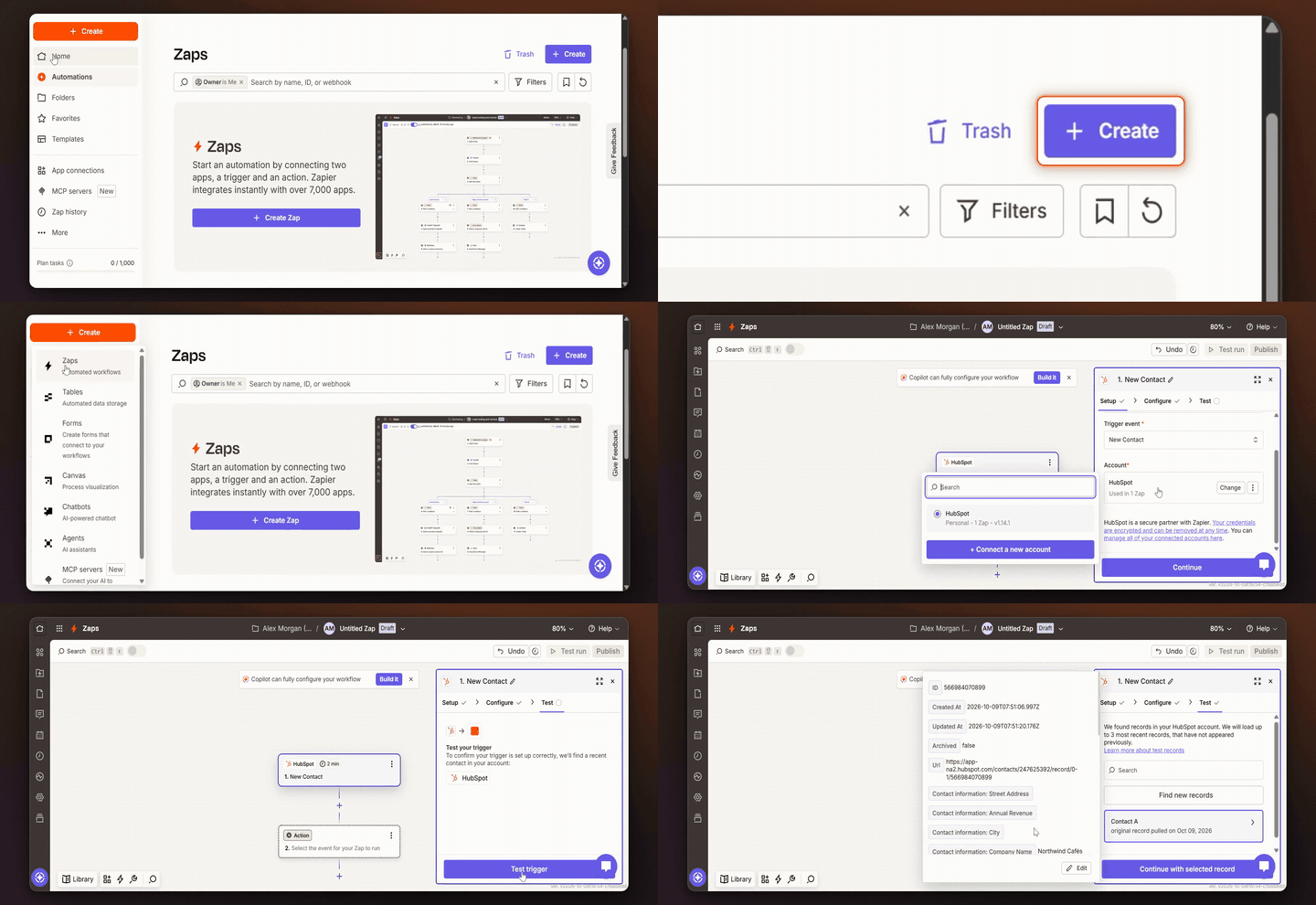
How to send new HubSpot leads to Slack with Zapier
Use this workflow to post a Slack message whenever a new contact is created in HubSpot. Follow these steps in order to build, test, and publish the automation for the first time.
1. Start a new Zap
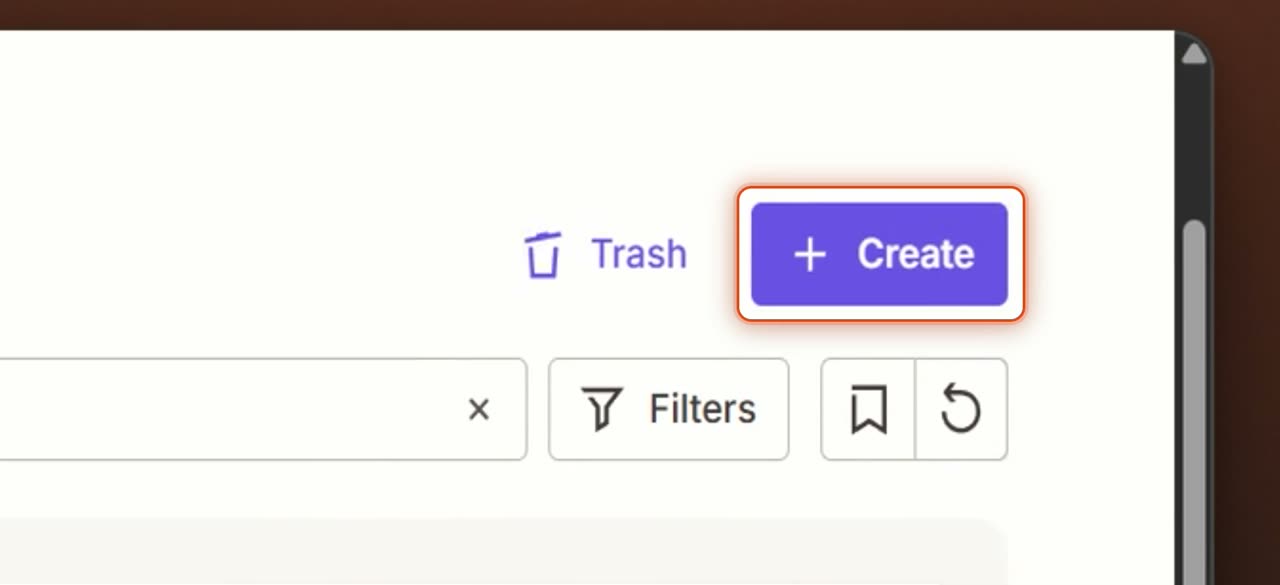
Click Create to begin a new automated workflow. This opens a blank Zap canvas.
2. Open the trigger step
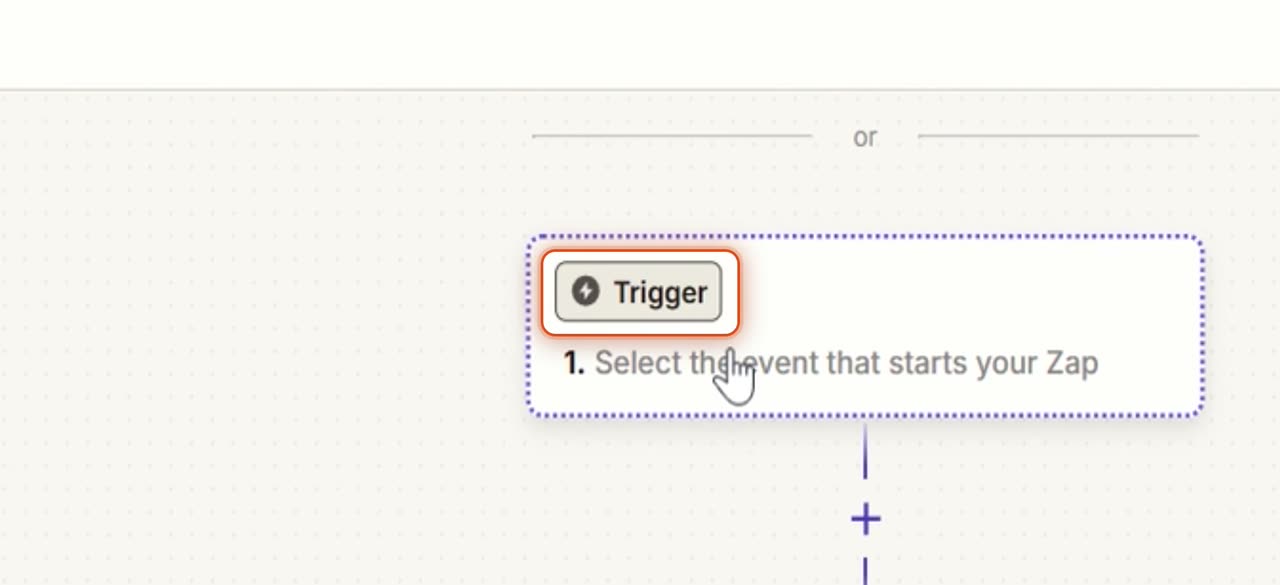
On the blank Zap canvas, click the Trigger block. This opens the app picker so you can choose what starts the workflow.
3. Choose HubSpot
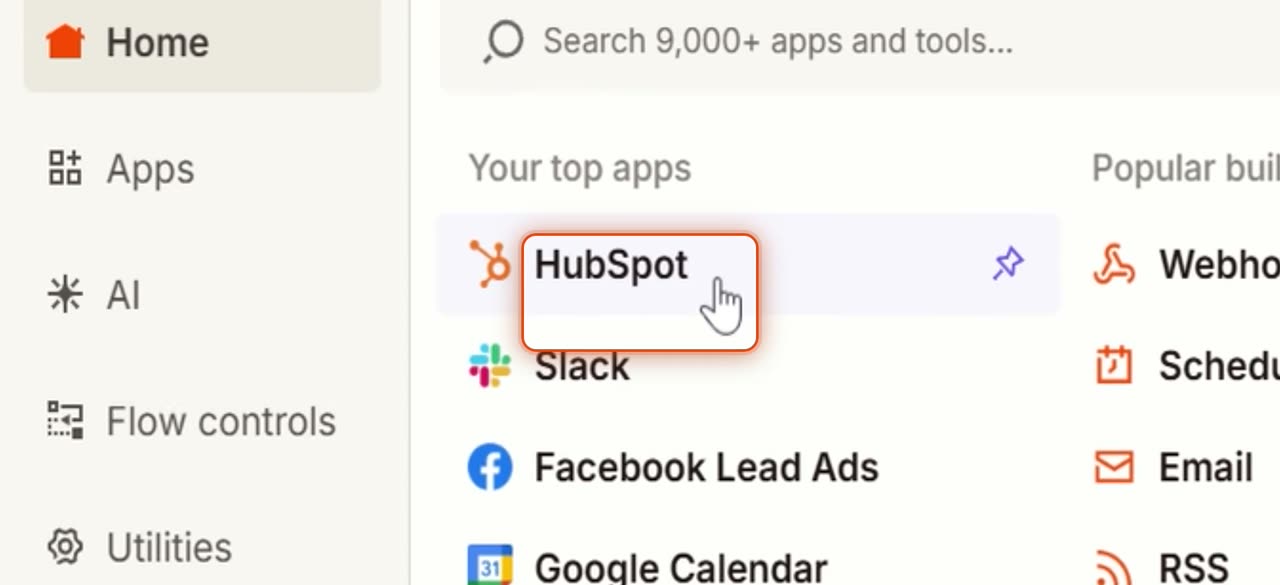
Select HubSpot from the list of apps. HubSpot opens in the trigger setup panel.
4. Open Trigger event
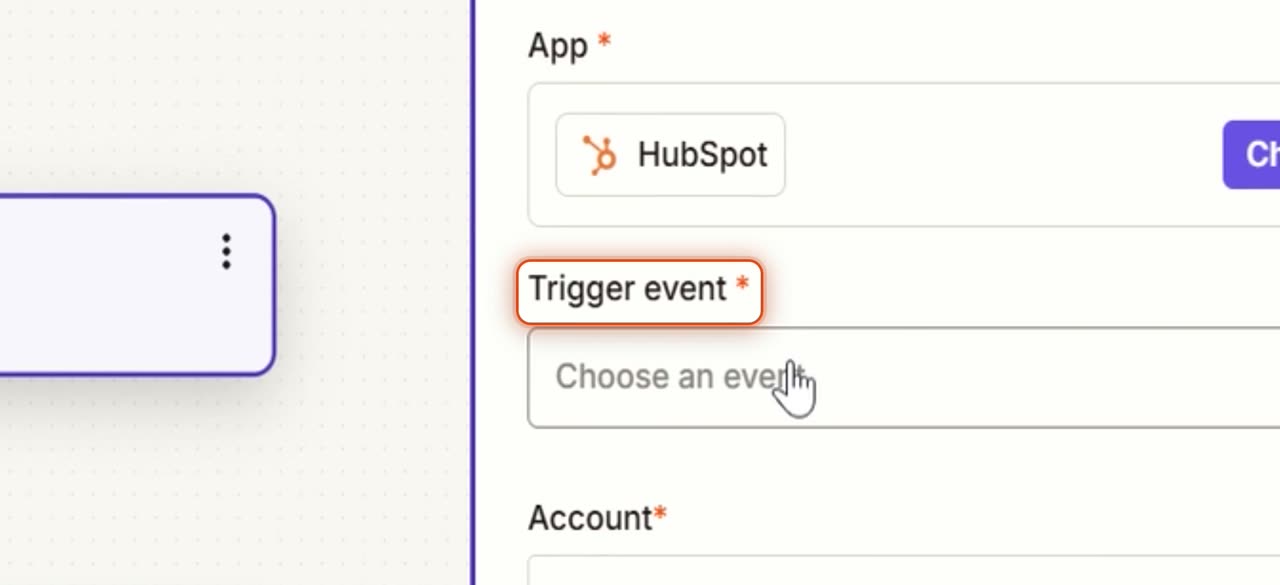
Click the Trigger event field. This opens the list of events that can start the Zap.
5. Select New Contact
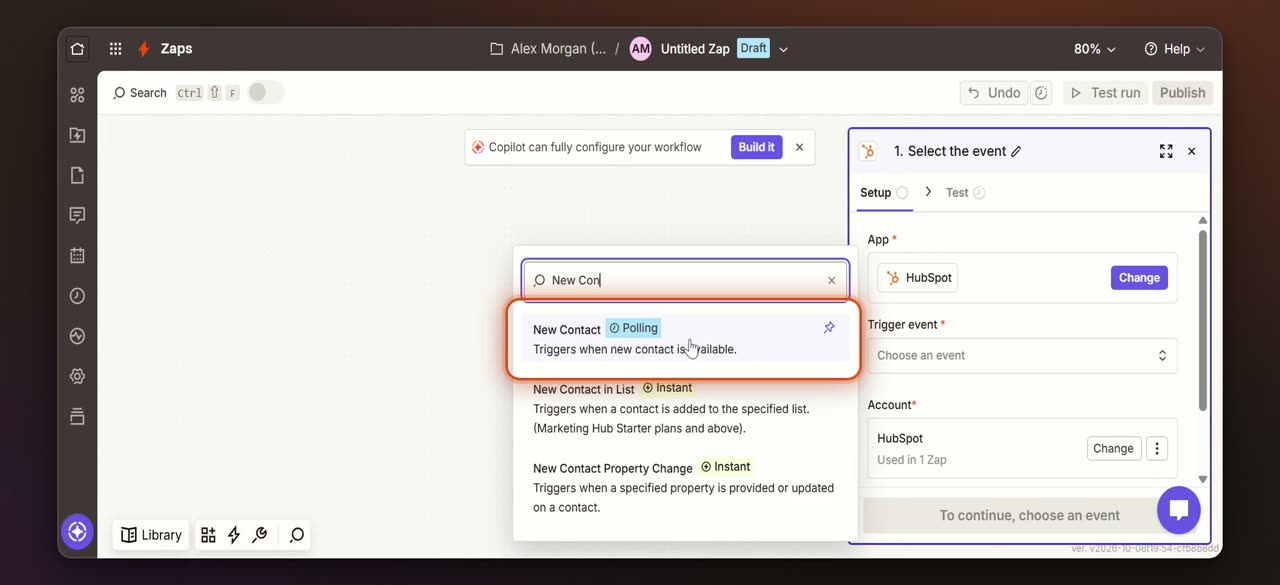
Choose New Contact as the trigger event. This sets the Zap to run when a new HubSpot contact is added.
6. Continue past setup
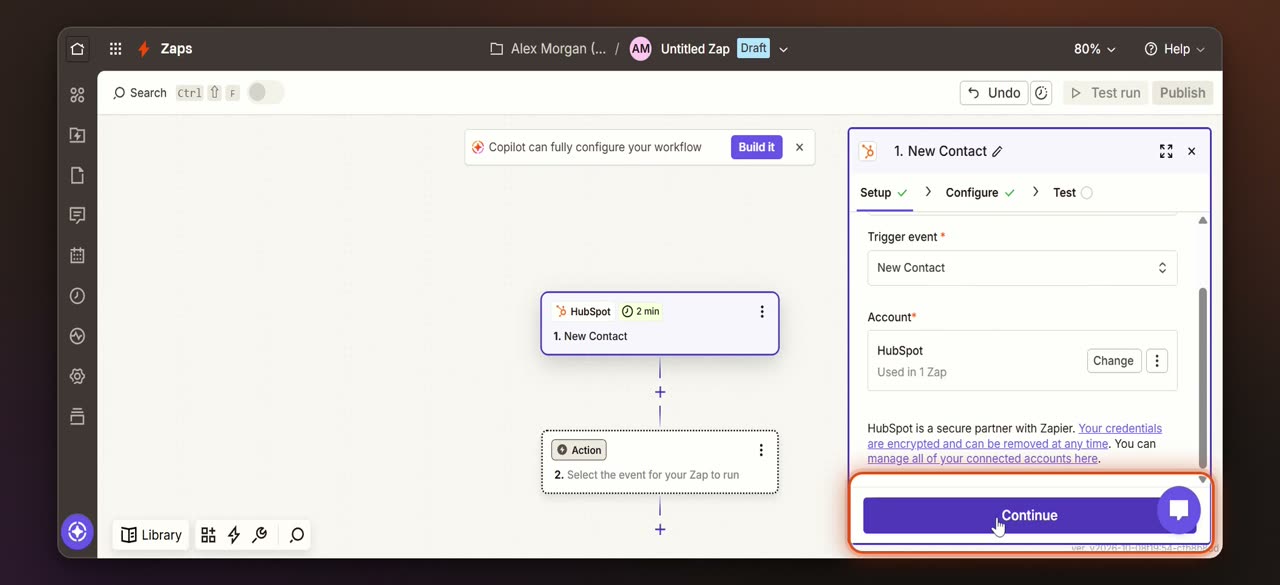
Click Continue to move forward. Zapier advances through setup and opens the trigger test.
7. Test the HubSpot trigger
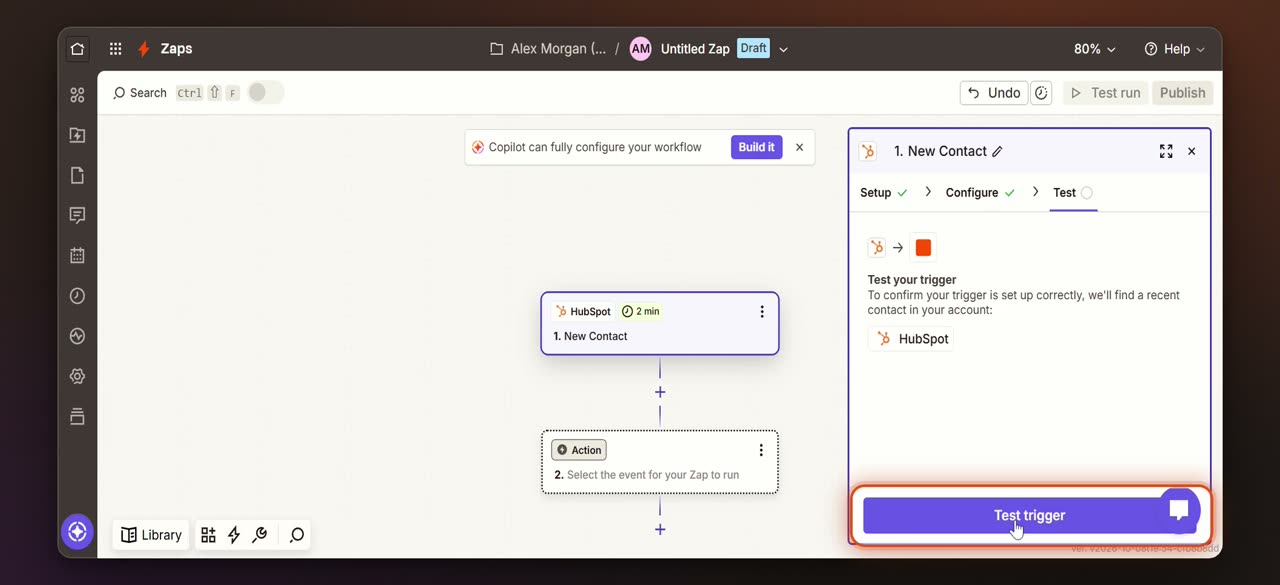
Click Test trigger to pull in sample data from HubSpot. A recent contact record appears for review.
8. Use the selected record
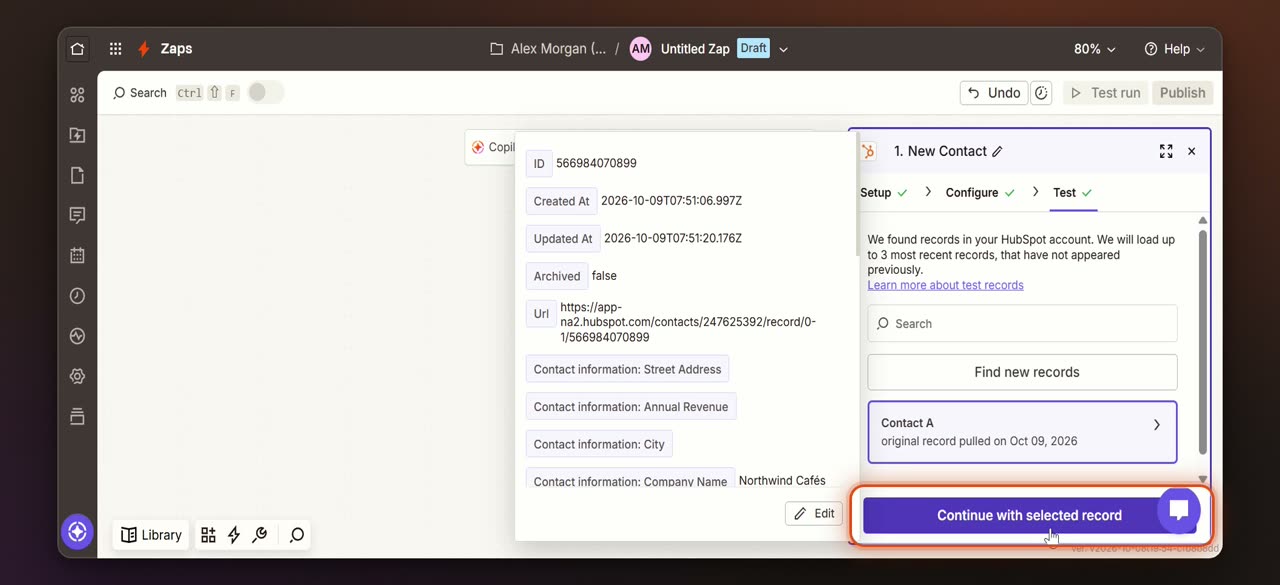
Click Continue with selected record. This uses the sample lead for the rest of the setup and opens the next app picker.
9. Choose Slack
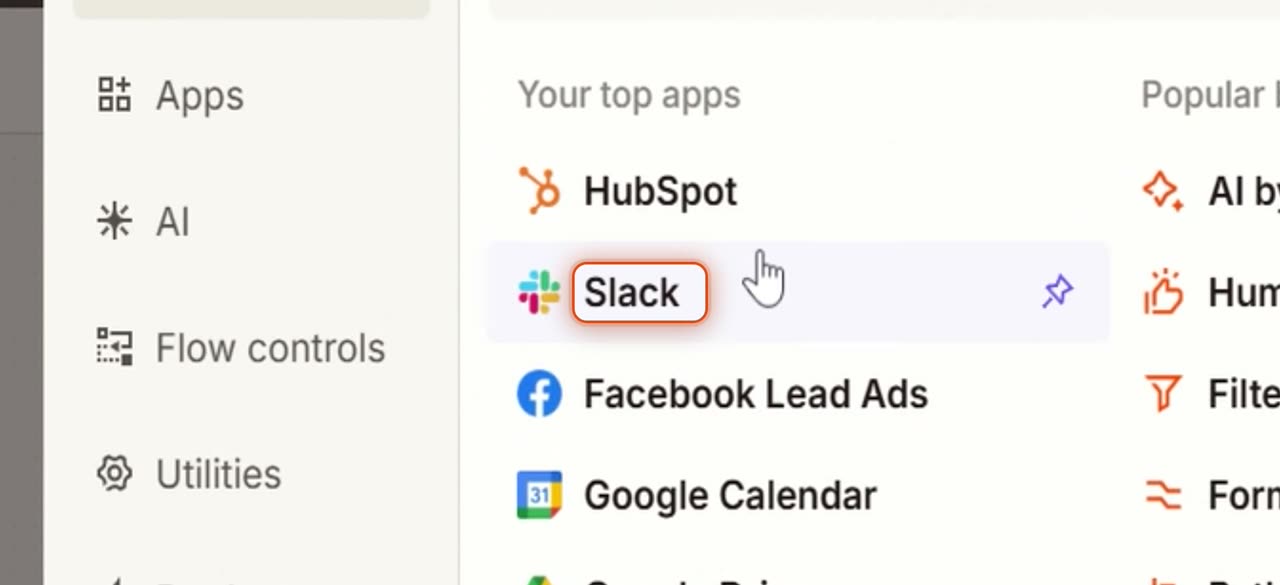
Select Slack as the action app. Slack opens with its action options in the setup panel.
10. Set the action event
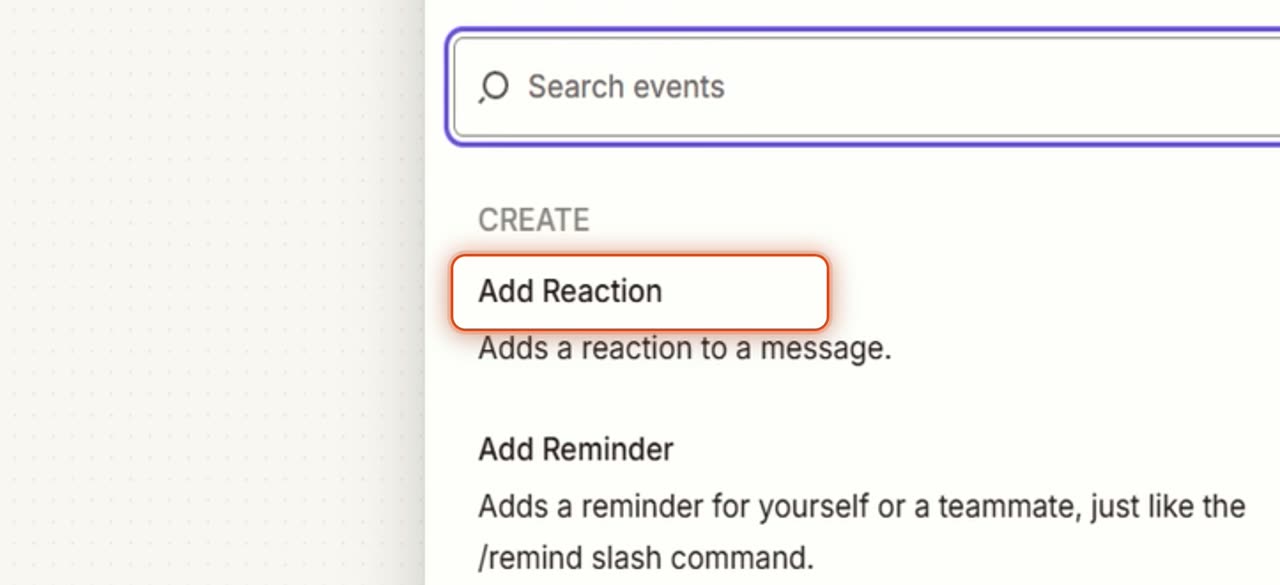
Choose Send Channel Message as the action event. The Slack step loads fields such as Channel and Message Text.
11. Pick the Slack channel
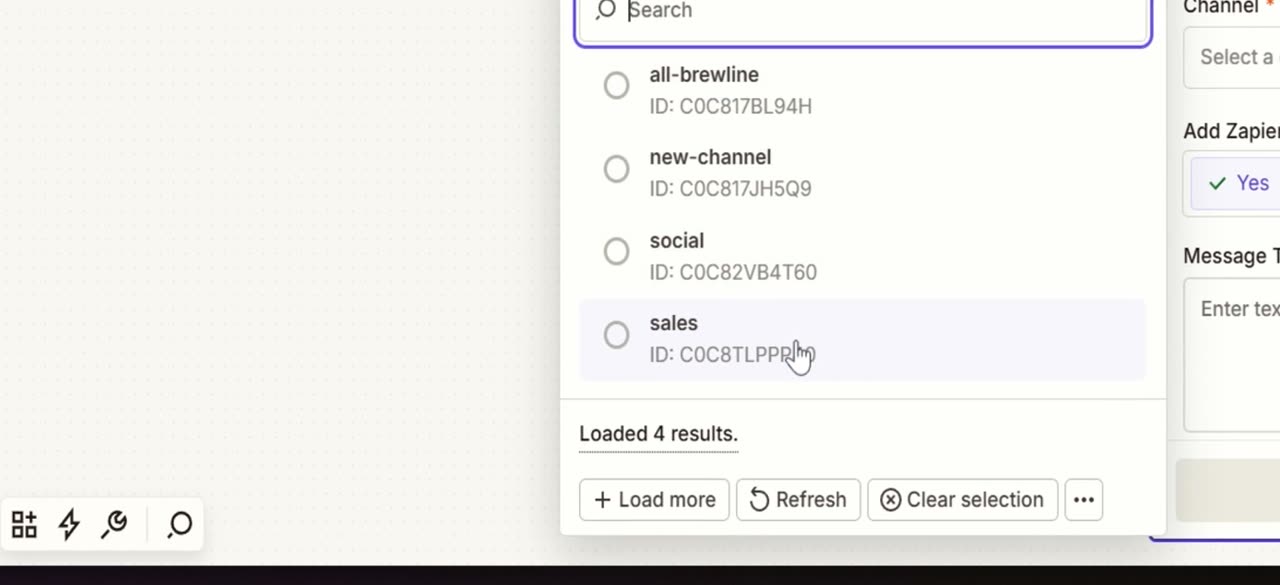
Select the sales channel for the notification. This is where new lead messages will be posted.
12. Add HubSpot fields to the message
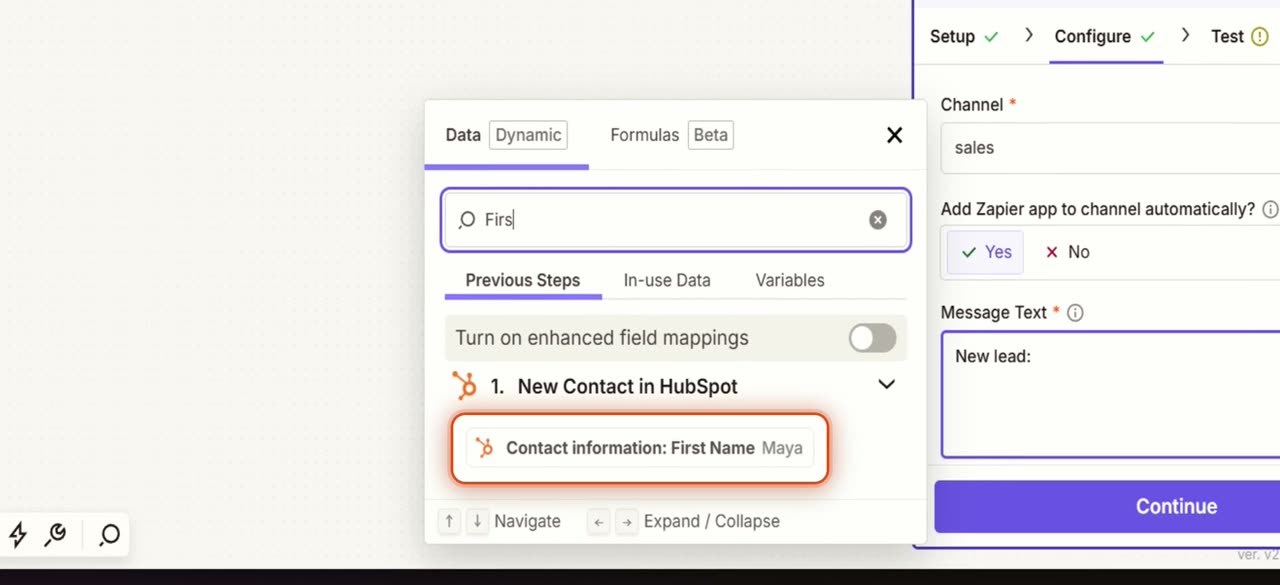
Insert dynamic HubSpot fields into Message Text, starting with First Name. Add any other lead details you want included in the Slack message.
13. Test the Slack action
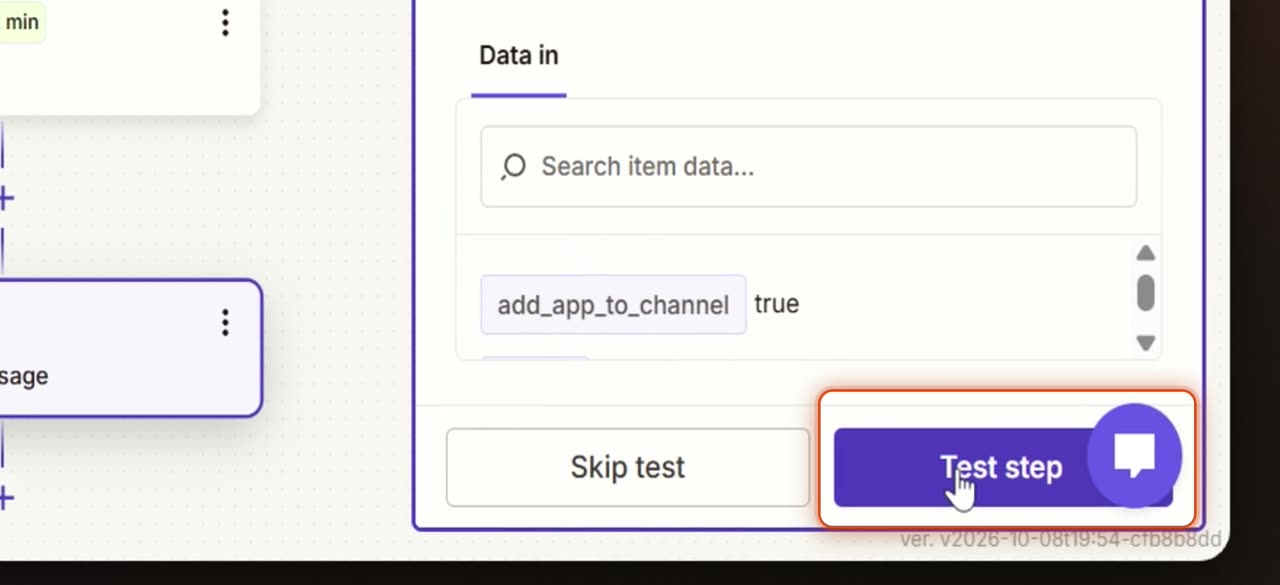
Click Test step to send a sample message to Slack. When the test finishes, you should see a confirmation that the message was sent.
14. Publish the Zap
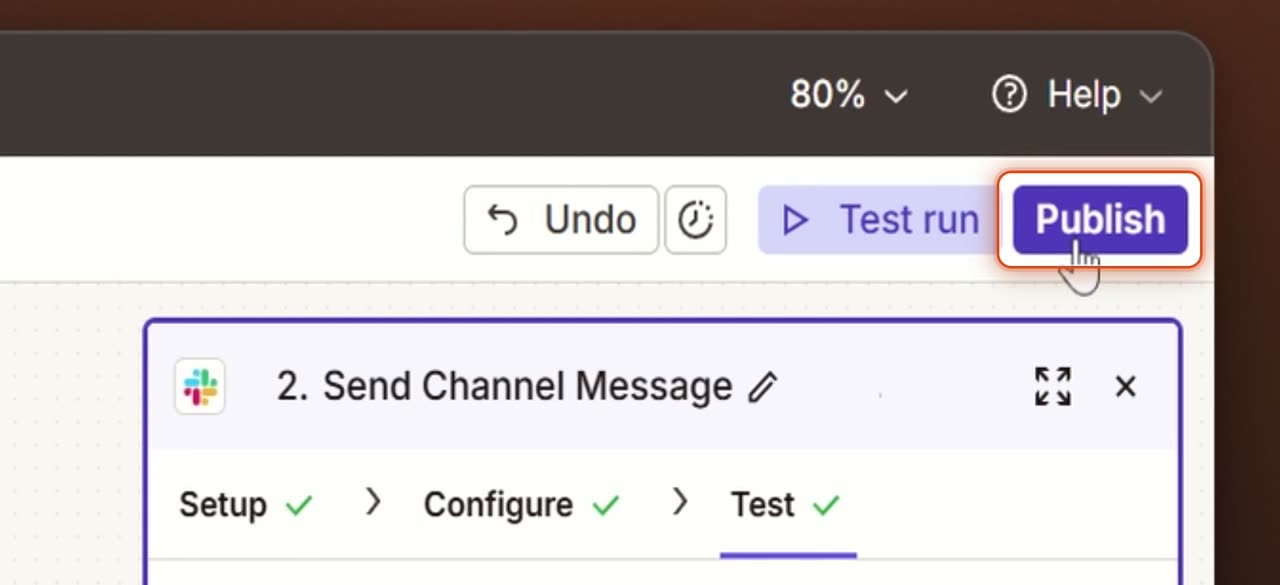
Click Publish after the test is complete. This prepares the workflow to go live.
15. Confirm publishing
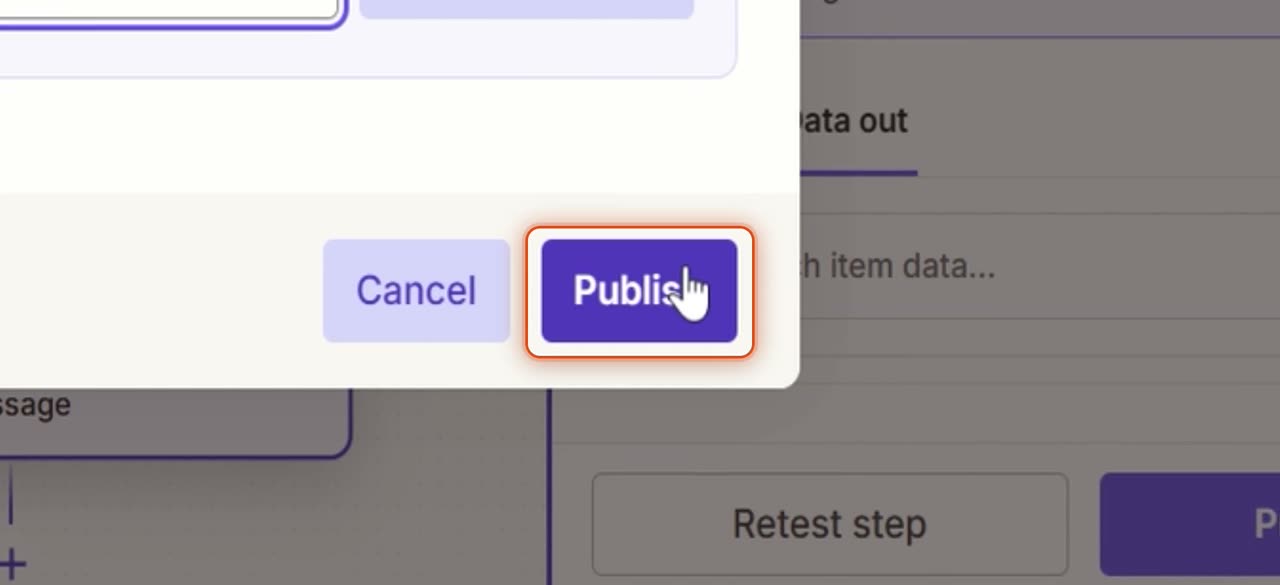
In the confirmation dialog, click Publish again. The Zap is turned on and ready to send new HubSpot leads to Slack.
Your workflow is now live, and new HubSpot contacts will send a message to your selected Slack channel.