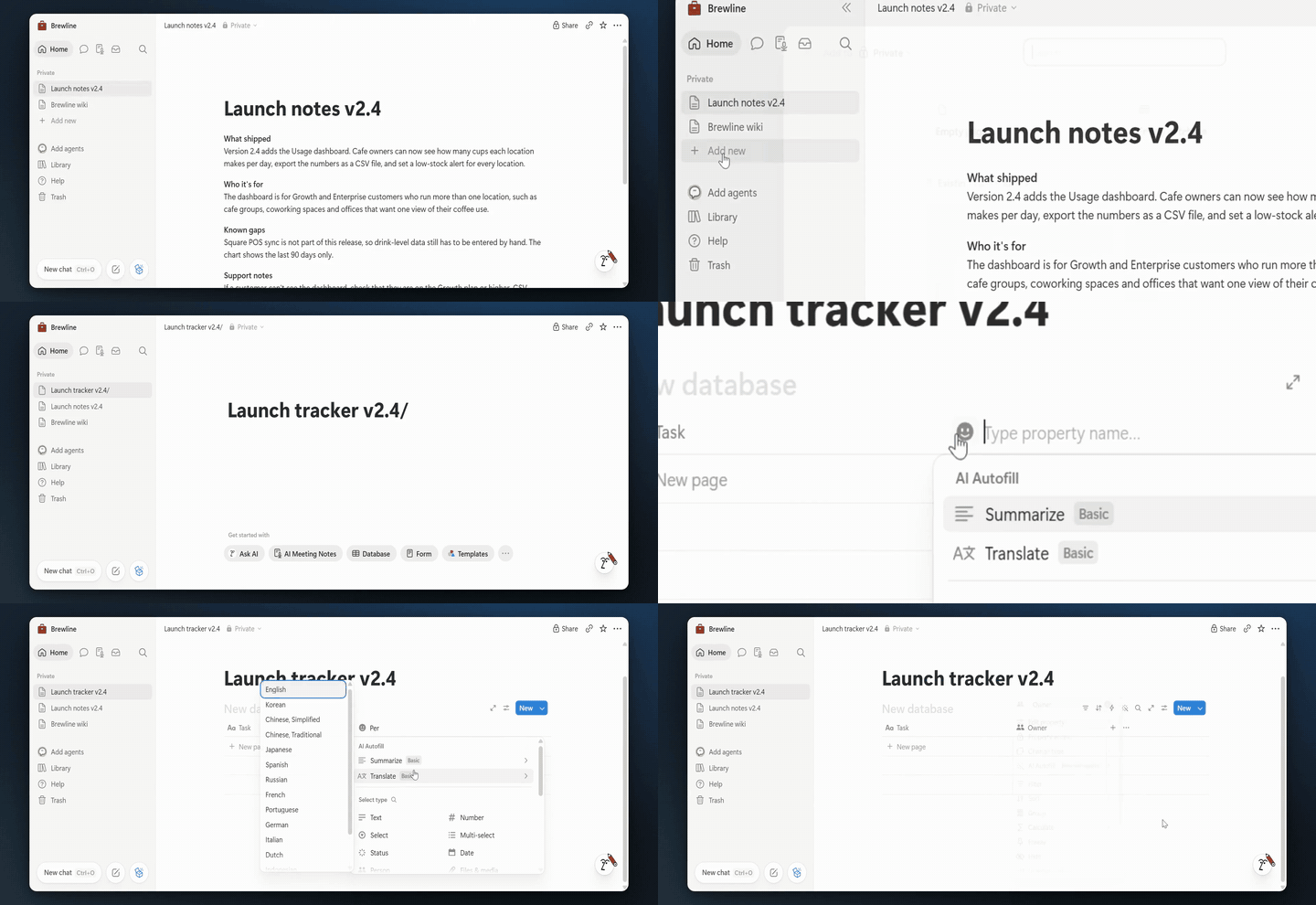
All examples
Notion

Build a launch tracker in Notion

One 4:12 screen recording, 17 clicks, no script. TurtleScene turned it into everything below. Nothing was edited by hand.

In4:12 recording
Out19
  • 10 videos
  • 1 clickable demo
  • 2 GIFs
  • 2 thumbnails
  • 2 caption tracks
  • 1 help article
  • 1 set of launch posts
The three main outputs

Watch it, click through it, or share the story.

Script, AI voiceover, zooms and a highlight on each step, all generated from the recording. Turn the sound on.

Cut for social · 8 videos

Every shape a feed asks for.

Captions are burned in, in big phrases, so they play muted. The narrated video gets vertical and square cuts that follow every click under a step header, and a 30-second highlight in landscape and 9:16. The story video is laid out again for each shape: vertical and square cuts, and its highlight in landscape and 9:16.

Vertical cut
Reels, Shorts, TikTok · 2:26
Square cut
LinkedIn and X · 2:26
30-second highlight
Emails and landing pages · 0:32
Vertical highlight
Stories and ads · 0:32
Written from the same recording

The docs and the launch copy come with it.

Help article

How to build a launch tracker in Notion

Create a simple launch tracker with a table, add key fields for tasks, owners, status, and due dates, then view the work on a board. You’ll also switch back to your notes and insert an AI-generated summary.

1. Create a new page
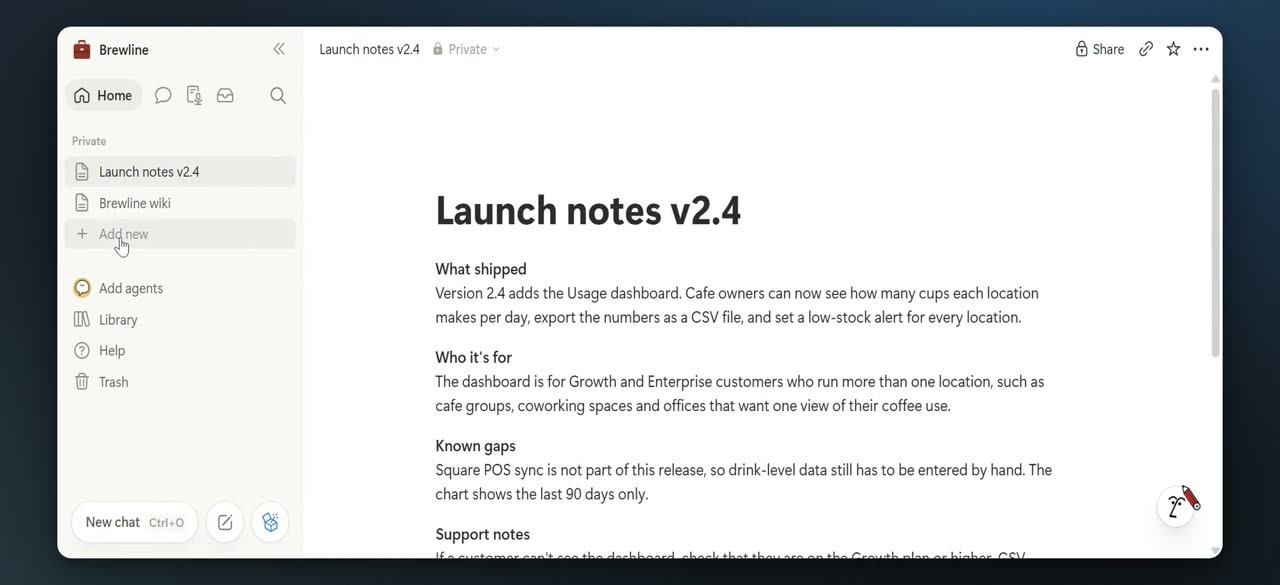
Create a new page

Click Add new in the left sidebar. A blank page opens and the block menu appears.

2. Choose Table view
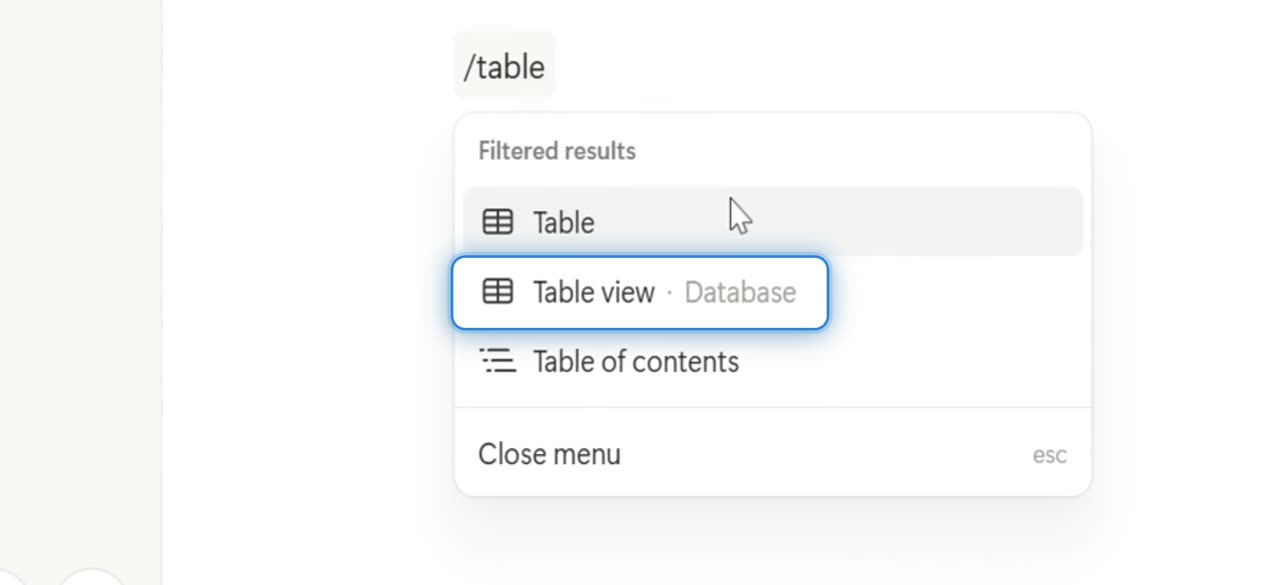
Choose Table view

Type /table, then choose Table view. This creates a database table on the page.

3. Rename the Name column
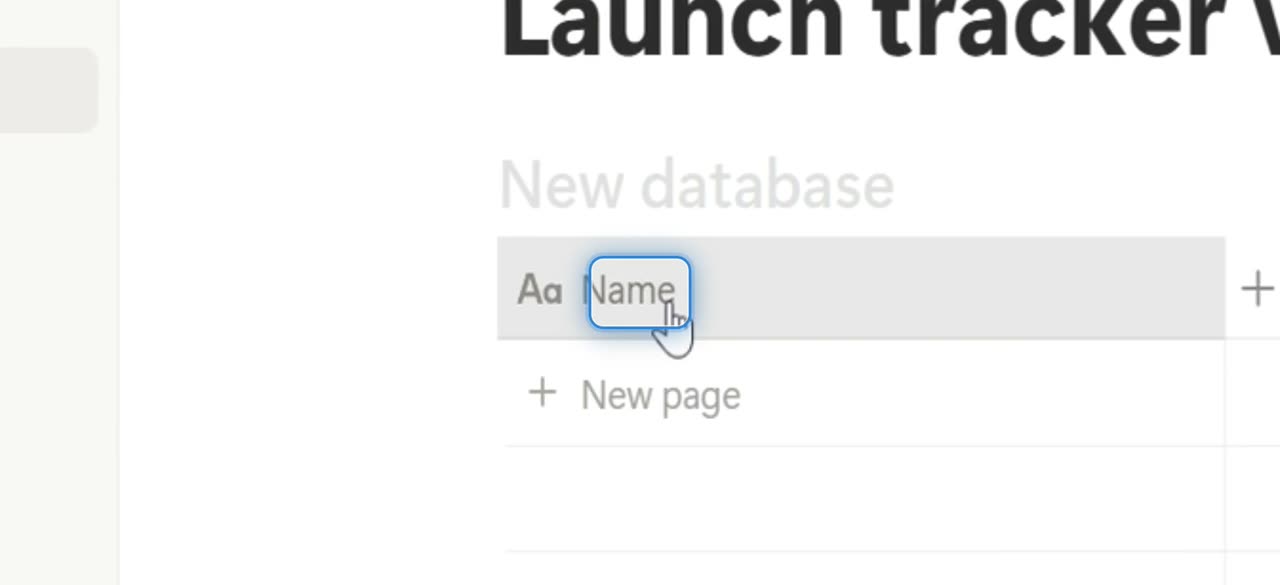
Rename the Name column

Click the Name column header to open its settings. Rename the property from Name to Task.

4. Add a new property column
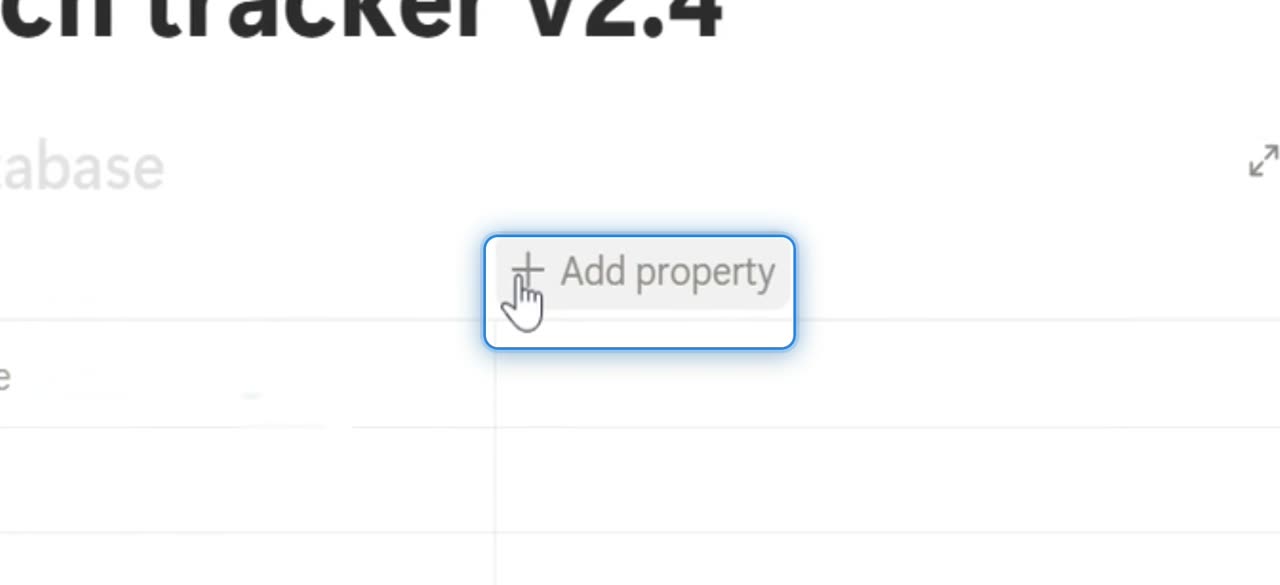
Add a new property column

Click the plus icon to add another property. The property menu opens with the type search field ready.

5. Set the property to Person
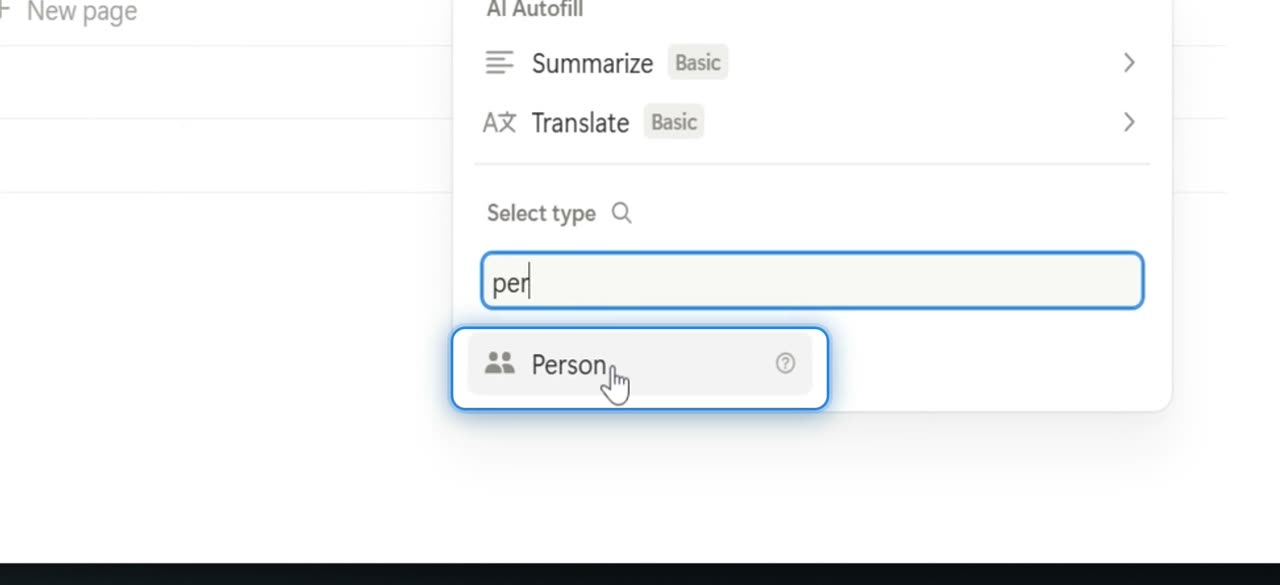
Set the property to Person

Search for per, then choose Person. Rename this new property to Owner.

6. Add another property
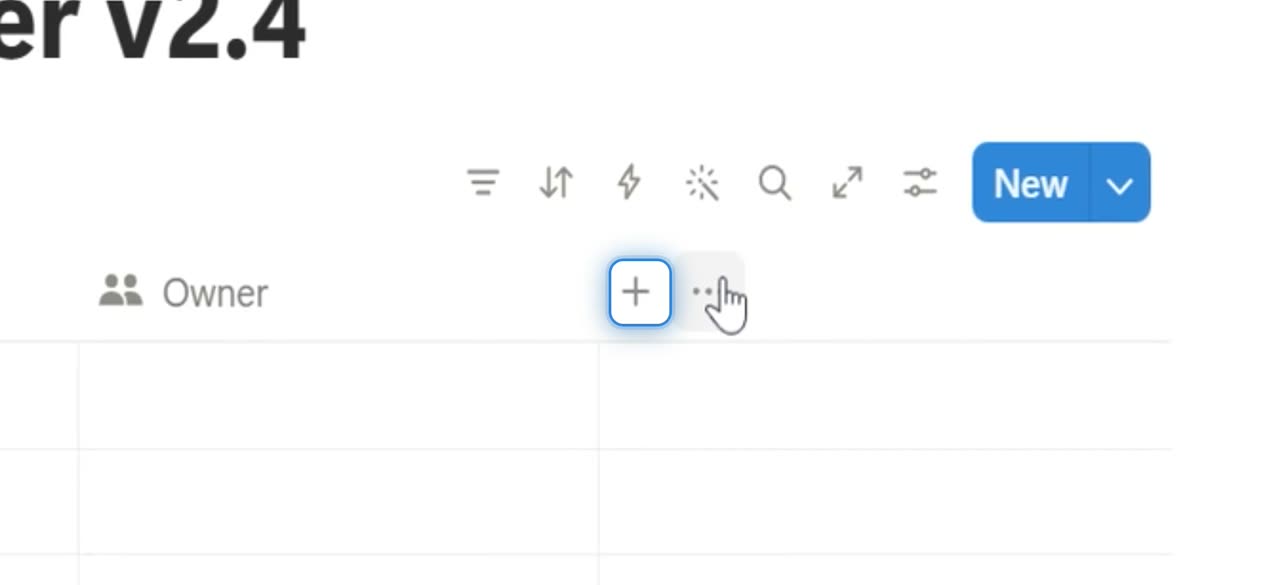
Add another property

Click the plus icon again to create one more column. You’ll use this one for status tracking.

7. Choose Status
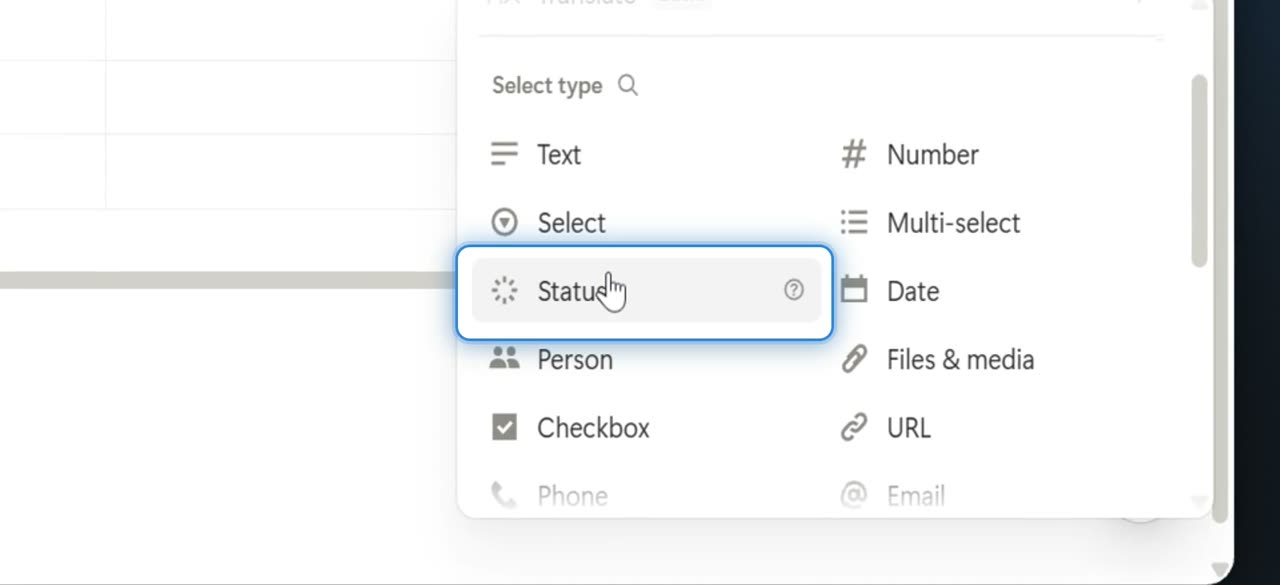
Choose Status

In the property types list, select Status. This adds a status column to the table.

8. Add a date property
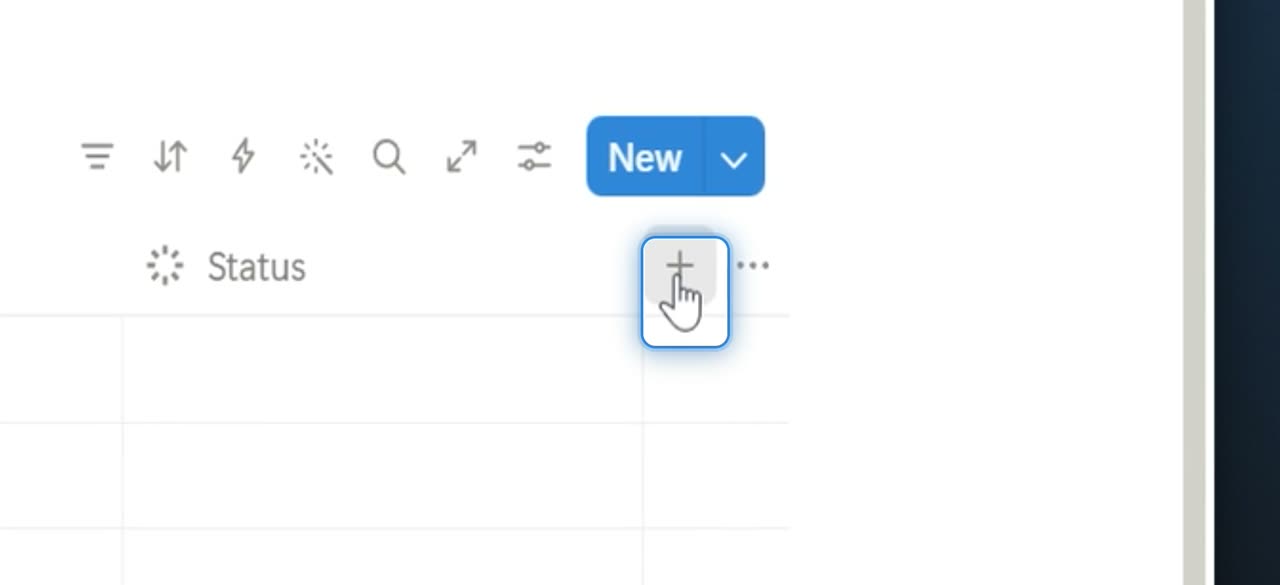
Add a date property

Click the plus icon again to add another field. Use this one for due dates.

9. Choose Date
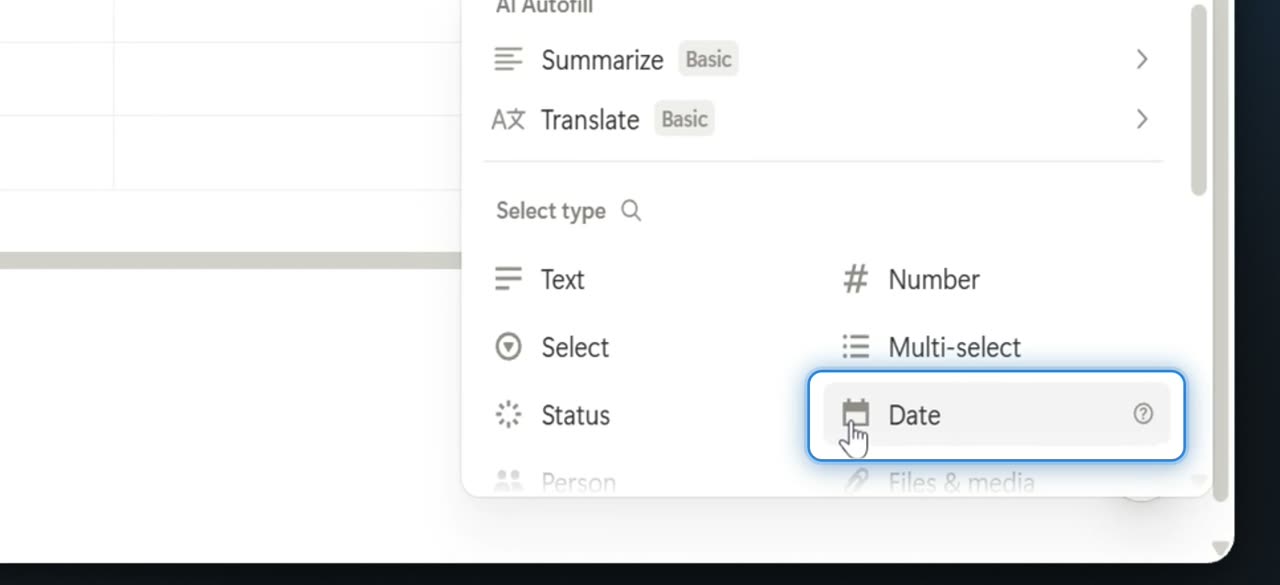
Choose Date

In the property menu, select Date. The new Date column appears in the table.

10. Rename the Date field
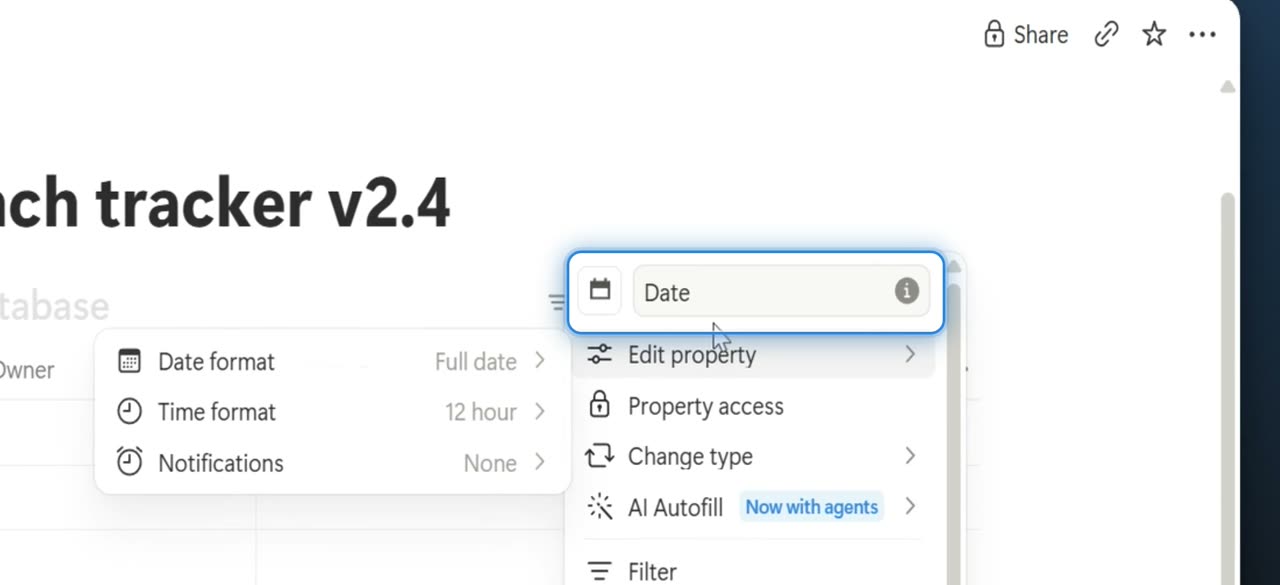
Rename the Date field

Click the property name input for the Date column. Change the name from Date to Due.

11. Insert the first task row
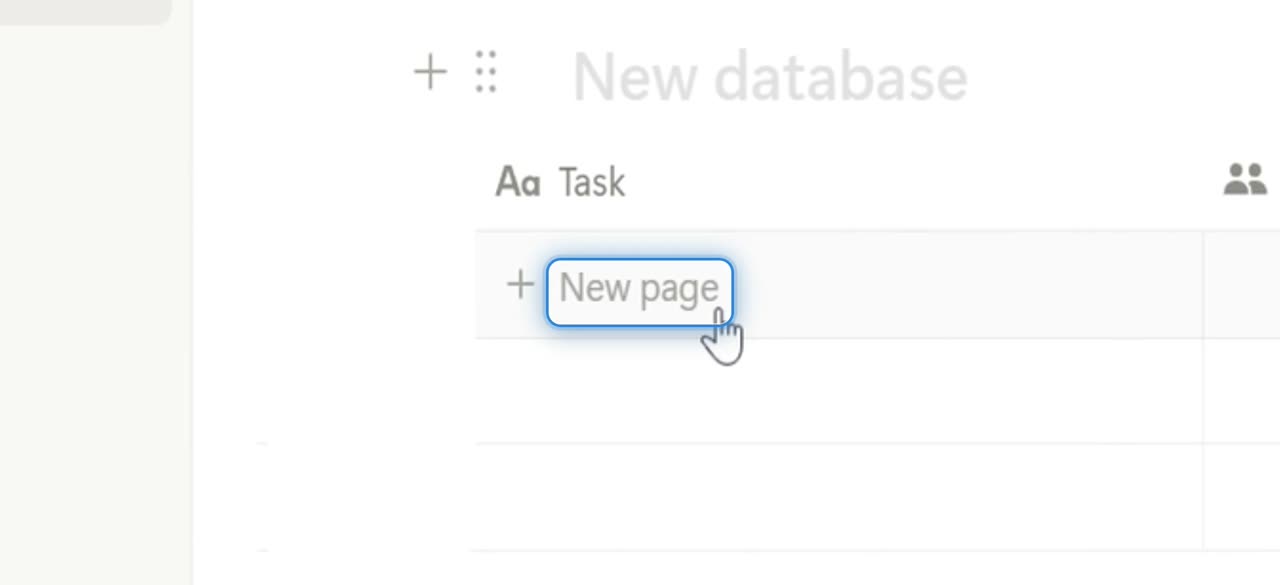
Insert the first task row

Click New page to add a new row to the tracker. The table is then filled with several tasks, owners, statuses, and due dates.

12. Add another view
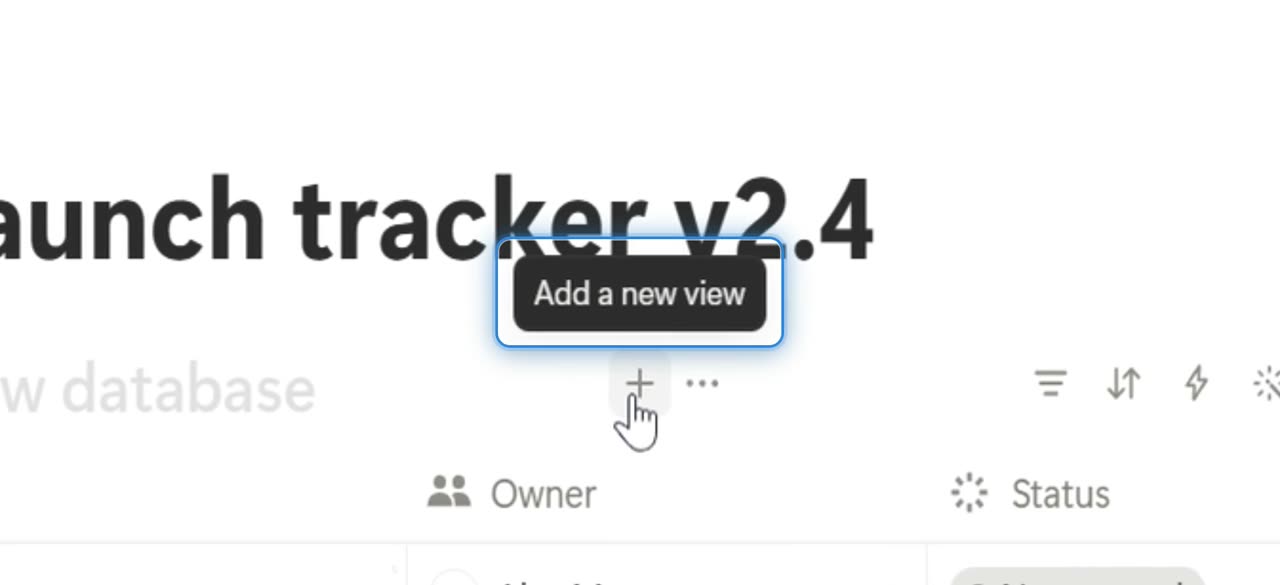
Add another view

Click the plus button next to Table. This creates an additional view for the same database.

13. Select Board view
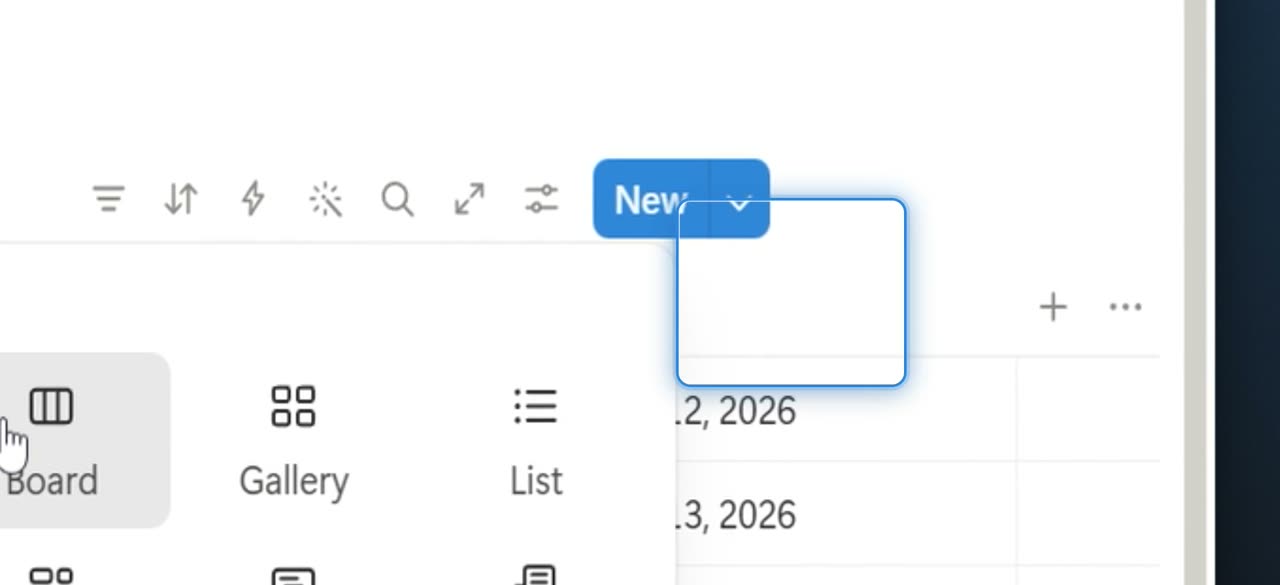
Select Board view

In New view, choose Board. The board opens with status columns such as Not started, In progress, and Done.

14. Move a task to In progress
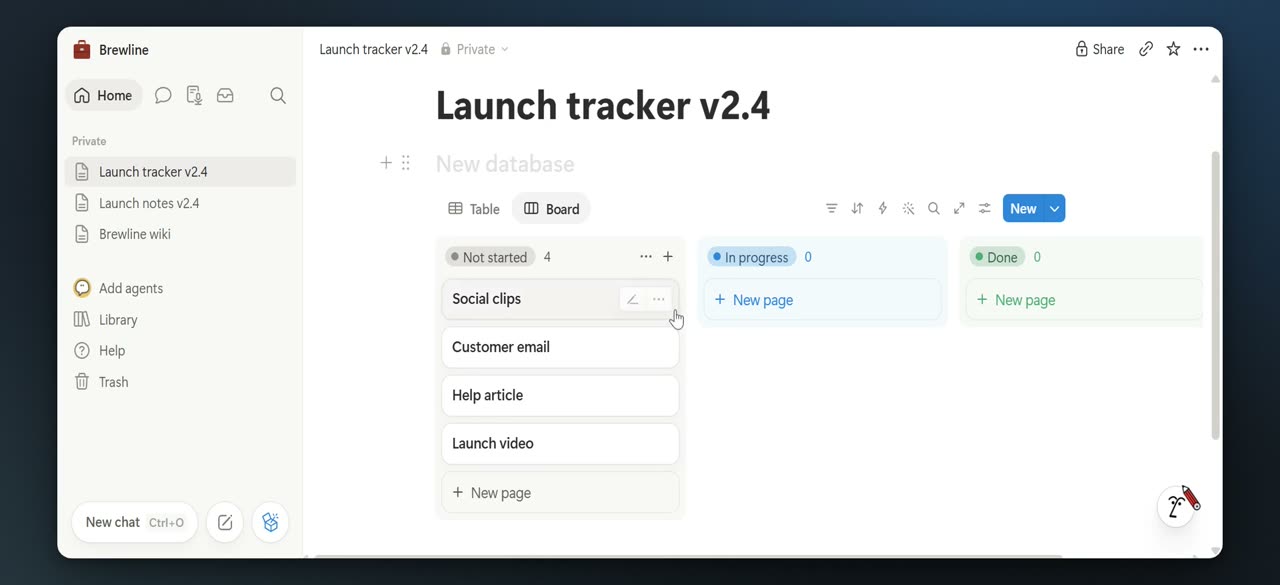
Move a task to In progress

Drag the Launch video card from Not started into In progress. The task status updates on the board.

15. Open the launch notes page
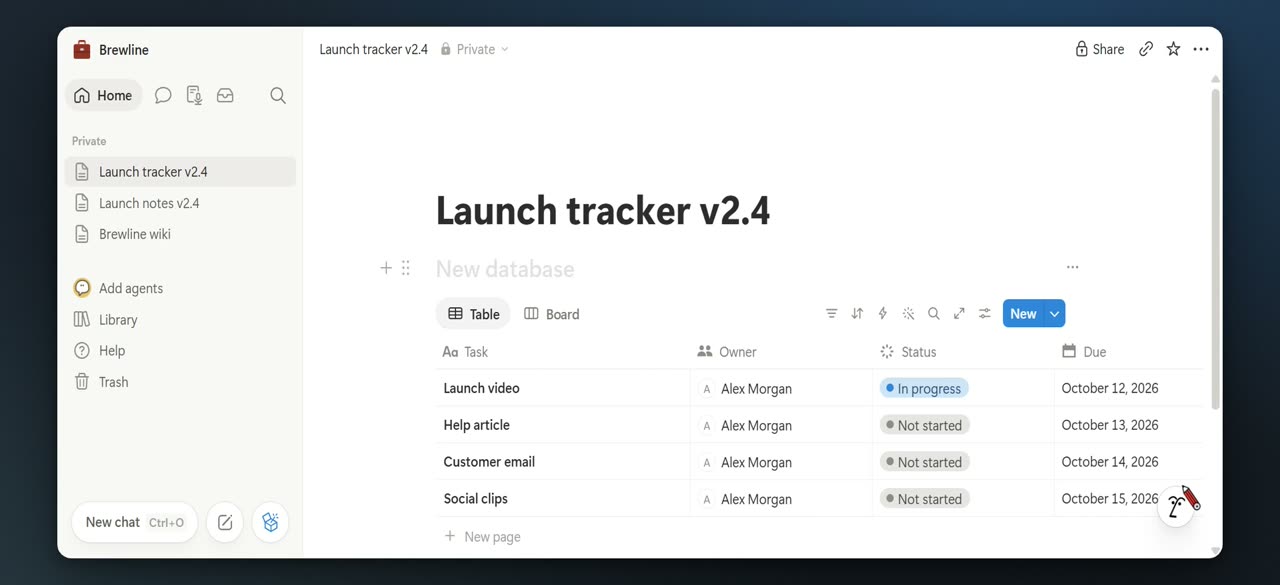
Open the launch notes page

Click Launch notes v2.4 in the sidebar. This switches back to the notes page, where the text is selected.

16. Summarize the page with AI
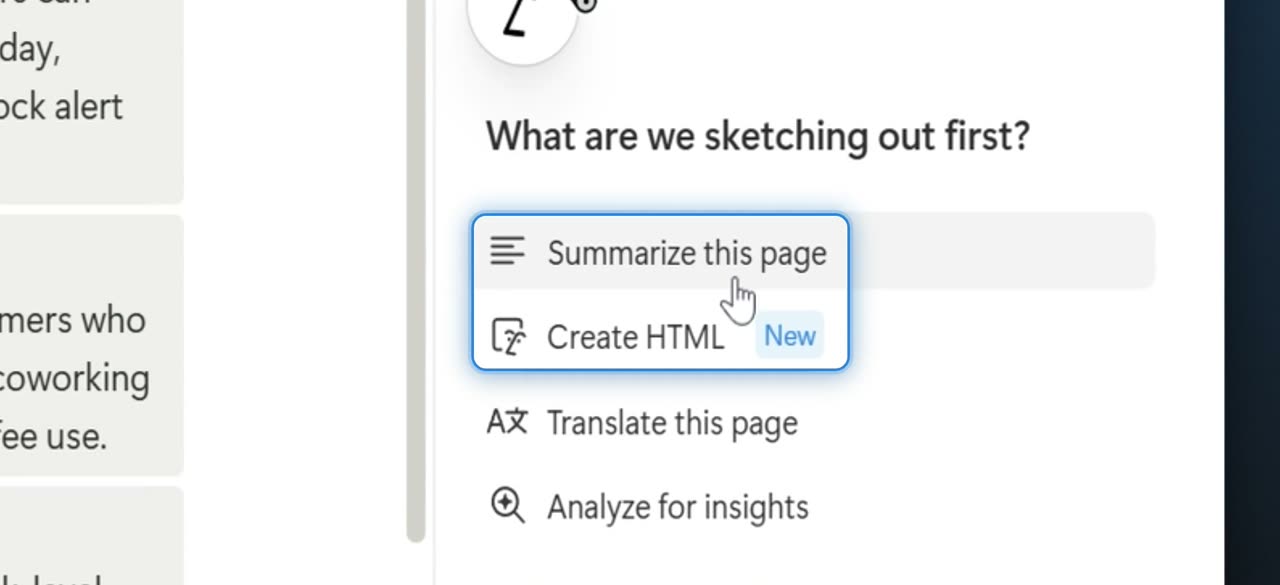
Summarize the page with AI

In the AI assistant panel, choose Summarize this page. The assistant drafts a summary in the side panel.

17. Insert the AI summary
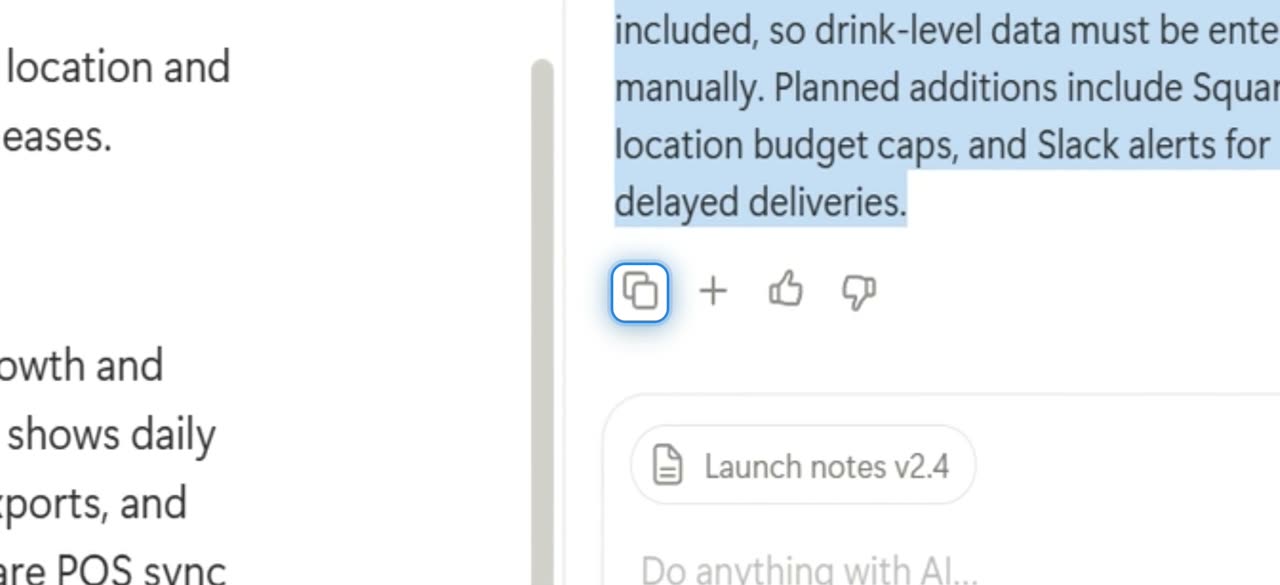
Insert the AI summary

Click the insert button. The generated summary is placed into the document.

Your launch tracker is ready, and your notes now include a summary you can refine or share.
Launch posts
You
Your company
LinkedIn post · written by TurtleScene

Launch work gets messy fast when tasks, owners, and deadlines live in different places.

This video shows how to build a simple launch tracker in Notion from a blank page, using a setup that first-time users can follow step by step.

It walks through:

- creating a new page - using /table to start with a Table view - adding properties for the details that matter - setting up a Person property for owner - using a Status property to track progress - renaming a date property to Due - adding a Board view to see the same work visually - dragging cards between statuses to keep momentum visible

The video also shows how to use AI on launch notes by choosing “Summarize this page” and inserting the summary into the page.

The result is a launch tracker that works in two useful ways: as a table for detail, and as a board for quick visibility.

If you want a practical way to keep launch work organized in Notion, watch the video. #Notion #ProductLaunch #HowTo

You
Your company
X post · written by TurtleScene

Launch tasks scatter fast.

This video shows how to build a launch tracker in Notion from a blank page: create a table, add owner/status/due date, switch to board view, and summarize launch notes with AI.

Watch the walkthrough. #Notion #HowTo

Read the blog post

How to build a launch tracker in Notion

A simple way to organize launch work

Launch tasks can spread across notes, messages, and spreadsheets quickly. A launch tracker helps keep the important details together: who owns each task, what stage it is in, and when it is due.

This video walks through how to build a launch tracker in Notion from a blank page. It is designed as a practical explainer for first-time users, showing each step from setup to a working board.

What the video covers

The walkthrough starts with a new page in Notion and uses `/table` to create a Table view. From there, it adds the key properties that make a launch tracker useful.

Three columns do most of the work:

  • Owner as a Person property
  • Status as a Status property
  • Due as a renamed date property

With those in place, the tracker can hold the core details for each launch task in one place.

From table to board

The video then shows how to add a Board view to the same set of tasks. This makes it easy to move work through different stages by dragging cards from one status to another.

For example, a task like Launch video can be dragged to reflect progress as work moves forward.

This is the main benefit of the setup: the same tasks can be viewed in two ways. The table gives structure and detail, while the board makes progress easier to scan at a glance.

Add a quick summary to launch notes

The final step covers launch notes. In the video, AI is opened on the page and the Summarize this page option is selected. The summary is then inserted directly into the page.

That gives teams a quick way to turn longer notes into a shorter recap without leaving the workspace.

Start with one page

A launch tracker does not need to be complicated to be useful. One page, a few clear properties, and a board view can go a long way toward making launch work easier to follow.

Watch the video to see how to build your own launch tracker in Notion.

Captions · narrated video
  1. 00:00Here's how to build
  2. 00:01a launch tracker in Notion.
  3. 00:04Start a new page with Add new.
  4. 00:07A blank page opens,
  5. 00:08and the block menu appears.
  6. 00:11Type slash table, then choose Table view.
  7. 00:18Open the default Name
  8. 00:20column settings from Name.
  9. 00:23Rename the property from Name to Task.
  10. 00:26Add another column with Add property.
  11. 00:30The property menu opens,
  12. 00:32and the type search field is ready.
  13. 00:35Search for per, then pick Person.
  14. 00:40The new Person property
  15. 00:42is renamed to Owner.
  16. 00:44Create one more column with Add property.
  17. 00:52From the property types list,
  18. 00:55choose Status.
  19. 00:58Add another property for due dates here.
  20. 01:03In the property menu, choose Date.
  21. 01:07The new Date column appears in the table.
  22. 01:10Open the Date property name field
  23. 01:12to rename it.
  24. 01:14The property name changes
  25. 01:16from Date to Due.
  26. 01:18Insert the first row
  27. 01:20in the tracker with New page.
  28. 01:23Several tasks, owners, statuses,
  29. 01:25and due dates are filled into the table.
  30. 01:29Add another database view
  31. 01:30with the plus button.
  32. 01:33In New view,
  33. 01:34select Board for status columns.
  34. 01:38The board view opens with Not started,
  35. 01:42In progress, and Done.
  36. 01:46On the board, Launch video is still
  37. 01:48in Not started while In progress is empty.
  38. 01:51Drag that card across
  39. 01:52into the In progress column.
  40. 01:55The task updates, and the board
  41. 01:57shows Launch video under In progress.
  42. 02:01With the tracker set up,
  43. 02:03switch back to the notes page by opening
  44. 02:06Launch notes v2.4 in the sidebar.
  45. 02:10The launch notes page opens,
  46. 02:12and the text is selected.
  47. 02:15In the AI panel,
  48. 02:16choose Summarize this page.
  49. 02:19The assistant drafts a summary
  50. 02:21in the side panel.
  51. 02:23Insert the generated summary
  52. 02:25into the page.
  53. 02:31The launch tracker and notes summary
  54. 02:33are now in place.
Captions · story video
  1. 00:00Here's how to build a launch tracker
  2. 00:02in Notion, from blank page to board.
  3. 00:05Launch tasks scatter fast. A tracker keeps
  4. 00:08owners, status and deadlines together.
  5. 00:12Add a new page,
  6. 00:13type slash table to choose Table view,
  7. 00:15then add a property for each detail.
  8. 00:19Use a Person property for the owner,
  9. 00:21a Status property for progress,
  10. 00:24and a date renamed Due.
  11. 00:27Then add a Board view,
  12. 00:29and drag a card like Launch video
  13. 00:31to change its status.
  14. 00:33Same tasks, as a table or a board,
  15. 00:36so progress is clear at a glance.
  16. 00:40On the launch notes,
  17. 00:41open AI and pick Summarize this page,
  18. 00:44then insert the summary into the page.
  19. 00:48Start with one page and give
  20. 00:49your next launch a home in Notion.
For previews and link cards

GIFs and thumbnails, from both videos.

GIF · narrated video
GIF · narrated videoChangelogs, READMEs, emails
GIF · story video
GIF · story videoChangelogs, READMEs, emails
Thumbnail · narrated video
Thumbnail · narrated videoYouTube and link previews
Thumbnail · story video
Thumbnail · story videoYouTube and link previews

Independent tutorials we recorded ourselves. Notion is a trademark of their owners; TurtleScene is not affiliated with or endorsed by them.

Your next product demo is one recording away

Record a flow on the free plan and watch it come back narrated, clickable and on-brand in a few minutes.

  • No credit card
  • 2 free recordings a month
  • Cancel any time